
Managing KVM Virtualization on SUSE Linux Enterprise Server
KVM (Kernel Virtual Machine) is a virtualization solution that transforms the Linux kernel into a hypervisor for running multiple isolated virtual environments. Use it to consolidate server workloads and significantly save hardware resources. By the end of this guide, you will have a configured KVM host and be able to deploy virtual machine guests with optimized storage, networking and direct hardware access.
1 Setting up a KVM VM Host Server #
This section documents how to set up and use SUSE Linux Enterprise Server 16.1 as a QEMU-KVM based virtual machine host.

The virtual guest system needs the same hardware resources as if it were installed on a physical machine. The more guests you plan to run on the host system, the more hardware resources—CPU, disk, memory and network—you need to add to the VM Host Server.
1.1 CPU support for virtualization #
To run KVM, your CPU must support virtualization, and virtualization
needs to be enabled in the BIOS. The file /proc/cpuinfo
includes information about your CPU features.
To find out whether your system supports virtualization, see the section Architecture Support in the article Virtualization Limits and Support.
1.2 Required software #
The KVM host requires several packages to be installed. To install all necessary packages, do the following:
Install the patterns-server-kvm_server and patterns-server-kvm_tools. For a full list of available virtualization patterns, see Installation of virtualization components.
Create a . If you do not plan to dedicate an additional physical network card to your virtual guests, network bridging is a standard way to connect the guest machines to the network. For details on creating network bridges, see Network bridge.
After all the required packages are installed (and the new network setup activated), try to load the KVM kernel module relevant for your CPU type—
kvm_intelorkvm_amd:#modprobe kvm_amdCheck if the module is loaded into memory:
>lsmod | grep kvm kvm_amd 237568 20 kvm 1376256 17 kvm_amdNow the KVM host is ready to serve KVM VM Guests. For information on running and managing virtual machines, see Section 4, “Running virtual machines with
qemu-system”.
1.3 KVM host-specific features #
You can improve the performance of KVM-based VM Guests by letting them fully use specific features of the VM Host Server's hardware (paravirtualization). This section introduces techniques that allow guests to access the physical host's hardware directly, bypassing the emulation layer for optimal performance.
Examples included in this section assume basic knowledge of the
qemu-system-ARCH command-line options. For more information, see Section 4, “Running virtual machines with qemu-system”.
1.3.1 Using the host storage with virtio-scsi #
virtio-scsi is an advanced storage stack for
KVM. It replaces the former virtio-blk stack
for SCSI device pass-through. It has several advantages over
virtio-blk:
- Improved scalability
KVM guests have a limited number of PCI controllers, which results in a limited number of attached devices.
virtio-scsisolves this limitation by grouping multiple storage devices on a single controller. Each device on avirtio-scsicontroller is represented as a logical unit, or LUN.- Standard command set
virtio-blkuses a small set of commands that need to be known to both thevirtio-blkdriver and the virtual machine monitor, and so introducing a new command requires updating both the driver and the monitor.By comparison,
virtio-scsidoes not define commands, but rather a transport protocol for these commands following the industry-standard SCSI specification. This approach is shared with other technologies, such as Fibre Channel, ATAPI and USB devices.- Device naming
virtio-blkdevices are presented inside the guest as/dev/vdX, which is different from device names in physical systems and may cause migration problems.virtio-scsikeeps the device names identical to those on physical systems, making the virtual machines easily relocatable.- SCSI device pass-through
For virtual disks backed by a whole LUN on the host, it is preferable for the guest to send SCSI commands directly to the LUN (pass-through). This is limited in
virtio-blk, as guests need to use the virtio-blk protocol instead of SCSI command pass-through, and, moreover, it is not available for Windows guests.virtio-scsinatively removes these limitations.
1.3.1.1 virtio-scsi usage #
KVM supports the SCSI pass-through feature with the
virtio-scsi-pci device:
# qemu-system-x86_64 [...] \
-device virtio-scsi-pci,id=scsi
1.3.2 Accelerated networking with vhost-net #
The vhost-net module is used to accelerate
KVM's paravirtualized network drivers. It provides better latency and
greater network throughput. Use the vhost-net driver
by starting the guest with the following example command line:
# qemu-system-x86_64 [...] \
-netdev tap,id=guest0,vhost=on,script=no \
-net nic,model=virtio,netdev=guest0,macaddr=00:16:35:AF:94:4B
guest0 is an identification string of the
vhost-driven device.
1.3.3 Scaling network performance with multiqueue virtio-net #
As the number of virtual CPUs increases in VM Guests, QEMU offers a way of improving network performance using multiqueue. Multiqueue virtio-net scales network performance by allowing VM Guest virtual CPUs to transfer packets in parallel. Multiqueue support is required on both the VM Host Server and VM Guest sides.
The multiqueue virtio-net solution is most beneficial in the following cases:
Network traffic packets are large.
VM Guest has many connections active at the same time, mainly between the guest systems, or between the guest and the host, or between the guest and an external system.
The number of active queues is equal to the number of virtual CPUs in the VM Guest.

While multiqueue virtio-net increases the total network throughput, it increases CPU consumption as it uses the virtual CPU's power.
The following procedure lists important steps to enable the
multiqueue feature with qemu-system-ARCH. It
assumes that a tap network device with multiqueue capability
(supported since kernel version 3.8) is set up on the VM Host Server.
In
qemu-system-ARCH, enable multiqueue for the tap device:-netdev tap,vhost=on,queues=2*N
where
Nstands for the number of queue pairs.In
qemu-system-ARCH, enable multiqueue and specify MSI-X (Message Signaled Interrupt) vectors for the virtio-net-pci device:-device virtio-net-pci,mq=on,vectors=2*N+2
where the formula for the number of MSI-X vectors results from: N vectors for TX (transmit) queues, N for RX (receive) queues, one for configuration purposes, and one for possible VQ (vector quantization) control.
In the VM Guest, enable multiqueue on the relevant network interface (
eth0in this example):>sudoethtool -L eth0 combined 2*N
The resulting qemu-system-ARCH command line looks
similar to the following example:
qemu-system-x86_64 [...] -netdev tap,id=guest0,queues=8,vhost=on \
-device virtio-net-pci,netdev=guest0,mq=on,vectors=10
The id of the network device
(guest0) needs to be identical for both options.
Inside the running VM Guest, specify the following command with
root privileges:
>sudoethtool -L eth0 combined 8
Now the guest system networking uses the multiqueue support from the
qemu-system-ARCH hypervisor.
1.3.4 VFIO: secure direct access to devices #
Directly assigning a PCI device to a VM Guest (PCI pass-through) avoids performance issues caused by avoiding any emulation in performance-critical paths. VFIO replaces the traditional KVM PCI pass-through device assignment. A prerequisite for this feature is a VM Host Server configuration as described in Important: Requirements for VFIO and SR-IOV.
To be able to assign a PCI device via VFIO to a VM Guest, you need to find out which IOMMU Group it belongs to. The IOMMU (input/output memory management unit that connects a direct memory access-capable I/O bus to the main memory) API supports the notion of groups. A group is a set of devices that can be isolated from all other devices in the system. Groups are therefore the unit of ownership used by VFIO.
Identify the host PCI device to assign to the guest.
>sudolspci -nn [...] 00:10.0 Ethernet controller [0200]: Intel Corporation 82576 \ Virtual Function [8086:10ca] (rev 01) [...]Note down the device ID,
00:10.0in this example, and the vendor ID (8086:10ca).Find the IOMMU group of this device:
>sudoreadlink /sys/bus/pci/devices/0000\:00\:10.0/iommu_group ../../../kernel/iommu_groups/20The IOMMU group for this device is
20. Now you can check the devices belonging to the same IOMMU group:>sudols -l /sys/bus/pci/devices/0000\:01\:10.0/iommu_group/devices/ [...] 0000:00:1e.0 -> ../../../../devices/pci0000:00/0000:00:1e.0 [...] 0000:01:10.0 -> ../../../../devices/pci0000:00/0000:00:1e.0/0000:01:10.0 [...] 0000:01:10.1 -> ../../../../devices/pci0000:00/0000:00:1e.0/0000:01:10.1Unbind the device from the device driver:
>sudoecho "0000:01:10.0" > /sys/bus/pci/devices/0000\:01\:10.0/driver/unbindBind the device to the vfio-pci driver using the vendor ID from step 1:
>sudoecho "8086 153a" > /sys/bus/pci/drivers/vfio-pci/new_idA new device
/dev/vfio/IOMMU_GROUPis created as a result,/dev/vfio/20in this case.Change the ownership of the newly created device:
>sudochown qemu.qemu /dev/vfio/DEVICENow run the VM Guest with the PCI device assigned.
>sudoqemu-system-ARCH [...] -device vfio-pci,host=00:10.0,id=ID

As of SUSE Linux Enterprise Server 16.1, hotplugging of PCI devices passed to a VM Guest via VFIO is not supported.
You can find more detailed information on the
VFIO driver in the
/usr/src/linux/Documentation/vfio.txt file
(package kernel-source needs to be installed).
1.3.5 VirtFS: sharing directories between host and guests #
VM Guests normally run in a separate computing space—they are provided their own memory range, dedicated CPUs, and file system space. The ability to share parts of the VM Host Server's file system makes the virtualization environment more flexible by simplifying mutual data exchange. Network file systems, such as CIFS and NFS, have been the traditional way of sharing directories. But as they are not specifically designed for virtualization purposes, they suffer from major performance and feature issues.
SELinux Requirement: For security_model=mapped,
configure SELinux context:
#semanage fcontext -a -t virtiofsd_t "/tmp(/.*)?"#restorecon -Rv /tmp
1.3.5.1 Host Configuration #
Nothing needs to be done on the host side aside from installing virtiofsd. The VM Guest xml libvirt file should have a configuration like:
<filesystem type="virtiofs" accessmode="mapped">
   <driver type="virtiofs"/>
   <source dir="/tmp"/>
   <target dir="host_tmp"/>
   <alias name="fs0"/>
   <address type="pci" domain="0x0000" bus="0x01" slot="0x00" function="0x0"/>
</filesystem>
9p Protocol is a legacy solution with critical flaws. Moreover,
it incurs ~30-50% higher CPU overhead than virtiofs
for sequential I/O due to constant context switching between user and kernel space.
1.3.5.1.1 Access Mode Options for virtiofs #
The accessmode attribute in the <filesystem> element
defines how guest file permissions map to host permissions. Only two values are valid:
accessmode | Description | Security Implications |
|---|---|---|
mapped |
The default mode. Maps guest UIDs/GIDs to host UIDs/GIDs using a translation table. Guest files appear as if owned by a dedicated "virtiofs" user on the host (typically UID 1000).
Example: Guest user |
Recommended for all environments. Prevents guest users from directly accessing host user accounts. Does not require matching host users. |
passthrough |
Guest UIDs/GIDs are used directly on the host. The guest must have matching users on the host.
Example: Guest user |
Only for trusted guests (e.g., same-tenant cloud environments).
Requires matching host users (e.g., host must have Security risk: Compromised guest can directly access host user accounts. |
none |
Invalid value (common documentation error).
Always use |
Causes immediate configuration failure. |
Key Configuration Rule:
accessmode='mapped' must match the host's
security_model=mapped in virtiofsd.
Mismatched modes cause mount failures with errors like:
Failed to set security context: Operation not permitted.
1.3.5.2 Guest Configuration #
On the guest, load the kernel module and mount the file system:
The virtiofs module should be loaded automatically, if not do:
# modprobe virtiofsNow you can mount the target directory on your VM Guest:
# mount -t virtiofs -o dax host_tmp /mnt/hosttmpOptions:
virtiofsdax: Enables direct access for performance (recommended).daxcannot be used with the BTRFS file system.host_tmp: The target directory in the VM Guest configuration.
1.3.5.3 Persistent mounts virtiofs across reboot #
Simply add this line to /etc/fstab:
host_tmp /mnt/hosttmp virtiofs rw,nofail 0 0
1.3.5.4 Troubleshooting Common Issues #
Guest Kernel Check: verify the module
virtiofsis loaded:#lsmod | grep virtiofsPermission denied: Check SELinux context (see Section 1.3.5.1, “Host Configuration”)Mount fails with 9p: Verify you used-t virtiofs(not9p)Guest writes not syncing: Add
cache=noneto mount options
1.3.6 KSM: sharing memory pages between guests #
Kernel Same Page Merging (KSM) is a Linux kernel feature that merges identical memory pages from multiple running processes into one memory region. Because KVM guests run as processes under Linux, KSM provides the memory overcommit feature to hypervisors for more efficient use of memory. Therefore, if you need to run multiple virtual machines on a host with limited memory, KSM may be helpful to you.
KSM stores its status information in
the files under the /sys/kernel/mm/ksm directory:
> ls -1 /sys/kernel/mm/ksm
full_scans
merge_across_nodes
pages_shared
pages_sharing
pages_to_scan
pages_unshared
pages_volatile
run
sleep_millisecs
For more information on the meaning of the
/sys/kernel/mm/ksm/* files, see
/usr/src/linux/Documentation/vm/ksm.txt (package
kernel-source).
To use KSM, do the following.
Although SLES includes KSM support in the kernel, it is disabled by default. To enable it, run the following command:
#echo 1 > /sys/kernel/mm/ksm/runNow run several VM Guests under KVM and inspect the content of files
pages_sharingandpages_shared, for example:>while [ 1 ]; do cat /sys/kernel/mm/ksm/pages_shared; sleep 1; done 13522 13523 13519 13518 13520 13520 13528
2 Guest installation #
The libvirt-based tools such as
virt-manager and virt-install offer
convenient interfaces to set up and manage virtual machines. They act as a
kind of wrapper for the qemu-system-ARCH command.
However, it is also possible to use qemu-system-ARCH
directly without using
libvirt-based tools.

qemu-system-ARCH and libvirt
Virtual Machines created with
qemu-system-ARCH are not visible to the
libvirt-based tools.
2.1 Basic installation with qemu-system-ARCH #
In the following example, a virtual machine for a SUSE Linux Enterprise Server 11 installation is created. For detailed information on the commands, refer to the respective man pages.
If you do not already have an image of a system that you want to run in a virtualized environment, you need to create one from the installation media. In such a case, you need to prepare a hard disk image, and obtain an image of the installation media or the media itself.
Create a hard disk with qemu-img.
> qemu-img create1 -f raw2 /images/sles/hda3 8G4
The subcommand | |
Specify the disk's format with the | |
The full path to the image file. | |
The size of the image, 8 GB in this case. The image is created as a Sparse image file that grows when the disk is filled with data. The specified size defines the maximum size to which the image file can grow. |
After at least one hard disk image is created, you can set up a virtual
machine with qemu-system-ARCH that boots into the
installation system:
# qemu-system-x86_64 -name "sles"1-machine accel=kvm -M pc2 -m 7683 \
-smp 24 -boot d5 \
-drive file=/images/sles/hda,if=virtio,index=0,media=disk,format=raw6 \
-drive file=/isos/15 SP6-Online-ARCH-GM-media1.iso,index=1,media=cdrom7 \
-net nic,model=virtio,macaddr=52:54:00:05:11:118 -net user \
-vga cirrus9 -balloon virtio10Name of the virtual machine that is displayed in the window caption and can be used for the VNC server. This name must be unique. | |
Specifies the machine type. Use | |
Maximum amount of memory for the virtual machine. | |
Defines an SMP system with two processors. | |
Specifies the boot order. Valid values are | |
Defines the first ( | |
The second ( | |
Defines a paravirtualized ( | |
Specifies the graphic card. If you specify | |
Defines the paravirtualized balloon device that allows dynamically
changing the amount of memory (up to the maximum value specified with
the parameter |
After the installation of the guest operating system finishes, you can start the related virtual machine without the need to specify the CD-ROM device:
# qemu-system-x86_64 -name "sles" -machine type=pc,accel=kvm -m 768 \
-smp 2 -boot c \
-drive file=/images/sles/hda,if=virtio,index=0,media=disk,format=raw \
-net nic,model=virtio,macaddr=52:54:00:05:11:11 \
-vga cirrus -balloon virtio
2.2 Managing disk images with qemu-img #
In the previous section (see
Section 2.1, “Basic installation with qemu-system-ARCH”), we used the
qemu-img command to create an image of a hard disk.
You can, however, use qemu-img for general disk image
manipulation. This section introduces qemu-img
subcommands to help manage disk images flexibly.
2.2.1 General information on qemu-img invocation #
qemu-img uses subcommands (like
zypper does) to do specific tasks. Each subcommand
understands a different set of options. Certain options are general and
used by more of these subcommands, while others are unique to the
related subcommand. See the qemu-img man page (man 1
qemu-img) for a list of all supported options.
qemu-img uses the following general syntax:
> qemu-img subcommand [options]and supports the following subcommands:
createCreates a new disk image on the file system.
checkChecks an existing disk image for errors.
compareCheck if two images have the same content.
mapDumps the metadata of the image file name and its backing file chain.
amendModifies the options specific to the image format for the image file.
convertConverts an existing disk image to a new one in a different format.
infoDisplays information about the relevant disk image.
snapshotManages snapshots of existing disk images.
commitApplies changes made to an existing disk image.
rebaseCreates a new base image based on an existing image.
resizeIncreases or decreases the size of an existing image.
2.2.2 Creating, converting, and checking disk images #
This section describes how to create disk images, check their condition, convert a disk image from one format to another, and get detailed information about a particular disk image.
2.2.2.1 qemu-img create #
Use qemu-img create to create a new disk image for
your VM Guest operating system. The command uses the following
syntax:
> qemu-img create -f fmt1 -o options2 fname3 size4
The format of the target image. Supported formats are
| |
Certain image formats support additional options to be passed on the
command line. You can specify them here with the
| |
Path to the target disk image to be created. | |
Size of the target disk image (if not already specified with the
|
To create a new disk image sles.raw in the
directory /images growing up to a maximum size
of 4 GB, run the following command:
>qemu-img create -f raw -o size=4G /images/sles.raw Formatting '/images/sles.raw', fmt=raw size=4294967296>ls -l /images/sles.raw -rw-r--r-- 1 tux users 4294967296 Nov 15 15:56 /images/sles.raw>qemu-img info /images/sles.raw image: /images/sles11.raw file format: raw virtual size: 4.0G (4294967296 bytes) disk size: 0
As you can see, the virtual size of the newly created image is 4 GB, but the actual reported disk size is 0, as no data has been written to the image yet.
If you need to create a disk image on the Btrfs file system, you
can use nocow=on to reduce the performance
overhead created by the copy-on-write feature of Btrfs:
> qemu-img create -o nocow=on test.img 8G
If you, however, want to use copy-on-write, for example, for
creating snapshots or sharing them across virtual machines, then
leave the command line without the nocow option.
2.2.2.2 qemu-img convert #
Use qemu-img convert to convert disk images to
another format. To get a complete list of image formats supported by
QEMU, run qemu-img -h and look
at the last line of the output. The command uses the following
syntax:
> qemu-img convert -c1 -f fmt2 -O out_fmt3 -o options4 fname5 out_fname6
Applies compression to the target disk image. Only
| |
The format of the source disk image. It is normally autodetected and can therefore be omitted. | |
The format of the target disk image. | |
Specify additional options relevant to the target image format.
Use | |
Path to the source disk image to be converted. | |
Path to the converted target disk image. |
>qemu-img convert -O vmdk /images/sles.raw \ /images/sles.vmdk>ls -l /images/ -rw-r--r-- 1 tux users 4294967296 16. lis 10.50 sles.raw -rw-r--r-- 1 tux users 2574450688 16. lis 14.18 sles.vmdk
To see a list of options relevant for the selected target image
format, run the following command (replace vmdk
with your image format):
>qemu-img convert -O vmdk /images/sles.raw /images/sles.vmdk -o ?Supported options: size Virtual disk size backing_file File name of a base image compat6 VMDK version 6 image subformat VMDK flat extent format, can be one of {monolithicSparse \ (default) | monolithicFlat | twoGbMaxExtentSparse | twoGbMaxExtentFlat} scsi SCSI image
2.2.2.3 qemu-img check #
Use qemu-img check to check the existing disk
image for errors. Not all disk image formats support this feature.
The command uses the following syntax:
> qemu-img check -f fmt1 fname2The format of the source disk image. It is normally autodetected and can therefore be omitted. | |
Path to the source disk image to be checked. |
If no error is found, the command returns no output. Otherwise, the type and number of errors found are shown.
> qemu-img check -f qcow2 /images/sles.qcow2
ERROR: invalid cluster offset=0x2af0000
[...]
ERROR: invalid cluster offset=0x34ab0000
378 errors were found on the image.
2.2.2.4 Increasing the size of an existing disk image #
When creating a new image, you must specify its maximum size before the image is created (see Section 2.2.2.1, “qemu-img create”). After you have installed the VM Guest and have been using it for a certain time, the initial size of the image may no longer be sufficient. In that case, add more space to it.
To increase the size of an existing disk image by 2 gigabytes, use:
> qemu-img resize /images/sles.raw +2GB
You can resize the disk image using the formats
raw and qcow2. To resize an
image in another format, convert it to a supported format with
qemu-img convert first.
The image now contains an empty space of 2 GB after the final partition. You can resize existing partitions or add new ones.
2.2.2.5 Advanced options for the qcow2 file format #
qcow2 is the main disk image format used by QEMU. Its size grows on demand, and disk space is only allocated when it is needed by the virtual machine.
A qcow2-formatted file is organized in units of constant size. These units are called clusters. Viewed from the guest side, the virtual disk is also divided into clusters of the same size. QEMU defaults to 64 kB clusters, but you can specify a different value when creating a new image:
> qemu-img create -f qcow2 -o cluster_size=128K virt_disk.qcow2 4GA qcow2 image contains a set of tables organized in two levels that are called the L1 and L2 tables. There is just one L1 table per disk image, while there can be many L2 tables depending on how big the image is.
To read or write data to the virtual disk, QEMU needs to read its corresponding L2 table to find out the relevant data location. Because reading the table for each I/O operation consumes system resources, QEMU keeps a cache of L2 tables in memory to speed up disk access.
2.2.2.5.1 Choosing the right cache size #
The cache size relates to the amount of allocated space. L2 cache can map the following amount of virtual disk:
disk_size = l2_cache_size * cluster_size / 8
With the default 64 kB of cluster size, that is
disk_size = l2_cache_size * 8192
Therefore, to have a cache that maps n gigabytes
of disk space with the default cluster size, you need
l2_cache_size = disk_size_GB * 131072
QEMU uses 1 MB (1048576 bytes) of L2 cache by default. Following the above formulas, 1 MB of L2 cache covers 8 GB (1048576 / 131072) of virtual disk. This means that the performance is fine with the default L2 cache size if your virtual disk size is up to 8 GB. For larger disks, you can speed up disk access by increasing the L2 cache size.
2.2.2.5.2 Configuring the cache size #
You can use the -drive option on the QEMU
command line to specify the cache size. Alternatively, when
communicating via QMP, use the blockdev-add
command. For more information on QMP, see
Section 3.11, “QMP - QEMU machine protocol”.
The following options configure the cache size for the virtual guest:
- l2-cache-size
The maximum size of the L2 table cache.
- refcount-cache-size
The maximum size of the refcount block cache. For more information on refcount, see https://raw.githubusercontent.com/qemu/qemu/master/docs/qcow2-cache.txt.
- cache-size
The maximum size of both caches combined.
When specifying values for the options above, be aware of the following:
The size of both the L2 and refcount block caches needs to be a multiple of the cluster size.
If you only set one option, QEMU automatically adjusts the other options so that the L2 cache is 4 times bigger than the refcount cache.
The refcount cache is used much less often than the L2 cache; therefore, you can keep it small:
# qemu-system-ARCH [...] \
 -drive file=disk_image.qcow2,l2-cache-size=4194304,refcount-cache-size=262144
2.2.2.5.3 Reducing memory usage #
The larger the cache, the more memory it consumes. There is a separate L2 cache for each qcow2 file. When using a lot of big disk images, you may need a considerably large amount of memory. Memory consumption is even worse if you add backing files (Section 2.2.4, “Manipulate disk images effectively”) and snapshots (see Section 2.2.3, “Managing snapshots of virtual machines with qemu-img”) to the guest's setup chain.
This is why QEMU introduced the
cache-clean-interval setting. It defines an
interval in seconds after which all cache entries that have not
been accessed are removed from memory.
The following example removes all unused cache entries every 10 minutes:
# qemu-system-ARCH [...] -drive file=hd.qcow2,cache-clean-interval=600If this option is not set, the default value is 0, and it disables this feature.
2.2.3 Managing snapshots of virtual machines with qemu-img #
Virtual Machine snapshots are snapshots of the complete environment in which a VM Guest is running. The snapshot includes the state of the processor (CPU), memory (RAM), devices, and all writable disks.
Snapshots are helpful when you need to save your virtual machine in a particular state. For example, after you have configured network services on a virtualized server and want to quickly start the virtual machine in the same state you last saved it. Or you can create a snapshot after the virtual machine has been powered off to create a backup state before you try something experimental and make the VM Guest unstable. This section introduces the latter case, while the former is described in Section 3, “Virtual machine administration using QEMU monitor”.
To use snapshots, your VM Guest must contain at least one writable
hard disk image in qcow2 format. This device is
normally the first virtual hard disk.
Virtual Machine snapshots are created with the
savevm command in the interactive QEMU monitor. To
make identifying a particular snapshot easier, you can assign it a
tag. For more information on the QEMU monitor, see
Section 3, “Virtual machine administration using QEMU monitor”.
Once your qcow2 disk image contains saved snapshots,
you can inspect them with the qemu-img snapshot
command.
Do not create or delete virtual machine snapshots with the
qemu-img snapshot command while the virtual
machine is running. Otherwise, you may damage the disk image with the
state of the virtual machine saved.
2.2.3.1 Listing existing snapshots #
Use qemu-img snapshot -l
DISK_IMAGE to view a list of all existing
snapshots saved in the disk_image image. You can
get the list even while the VM Guest is running.
> qemu-img snapshot -l /images/sles.qcow2
Snapshot list:
ID1       TAG2               VM SIZE3        DATE4          VM CLOCK5
1         booting                4.4M 2013-11-22 10:51:10   00:00:20.476
2         booted                 184M 2013-11-22 10:53:03   00:02:05.394
3         logged_in              273M 2013-11-22 11:00:25   00:04:34.843
4 ff_and_term_running 372M 2013-11-22 11:12:27 00:08:44.965Unique auto-incremented identification number of the snapshot. | |
Unique description string of the snapshot. It is meant as a human-readable version of the ID. | |
The disk space occupied by the snapshot. The more memory is consumed by running applications, the bigger the snapshot is. | |
Time and date the snapshot was created. | |
The current state of the virtual machine's clock. |
2.2.3.2 Creating snapshots of a powered-off virtual machine #
Use qemu-img snapshot -c
SNAPSHOT_TITLE
DISK_IMAGE to create a snapshot of the
current state of a virtual machine that was previously powered off.
> qemu-img snapshot -c backup_snapshot /images/sles.qcow2> qemu-img snapshot -l /images/sles.qcow2
Snapshot list:
ID TAG VM SIZE DATE VM CLOCK
1 booting 4.4M 2013-11-22 10:51:10 00:00:20.476
2 booted 184M 2013-11-22 10:53:03 00:02:05.394
3 logged_in 273M 2013-11-22 11:00:25 00:04:34.843
4 ff_and_term_running 372M 2013-11-22 11:12:27 00:08:44.965
5 backup_snapshot 0 2013-11-22 14:14:00 00:00:00.000If something breaks in your VM Guest and you need to restore the state of the saved snapshot (ID 5 in our example), power off your VM Guest and execute the following command:
> qemu-img snapshot -a 5 /images/sles.qcow2
The next time you run the virtual machine with
qemu-system-ARCH, it will be in the state of
snapshot number 5.
The qemu-img snapshot -c command is not related
to the savevm command of QEMU monitor (see
Section 3, “Virtual machine administration using QEMU monitor”). For example, you cannot apply
a snapshot with qemu-img snapshot -a on a
snapshot created with savevm in QEMU's
monitor.
2.2.3.3 Deleting snapshots #
Use qemu-img snapshot -d
SNAPSHOT_ID
DISK_IMAGE to delete old or unneeded
snapshots of a virtual machine. This saves disk space inside the
qcow2 disk image, as the space occupied by the
snapshot data is restored:
> qemu-img snapshot -d 2 /images/sles.qcow22.2.4 Manipulate disk images effectively #
Imagine the following real-life situation: you are a server administrator who runs and manages several virtualized operating systems. One group of these systems is based on one specific distribution, while another group (or groups) is based on different versions of the distribution or even on a different (and maybe non-Unix) platform. To make the case even more complex, individual virtual guest systems based on the same distribution differ according to the department and deployment. A file server typically uses a different setup and services than a Web server does, while both may still be based on SUSE® Linux Enterprise Server.
With QEMU it is possible to create “base” disk images. You can use them as template virtual machines. These base images save you plenty of time because you do not need to install the same operating system more than once.
2.2.4.1 Base and derived images #
First, build a disk image as usual and install the target system on
it. For more information, see
Section 2.1, “Basic installation with qemu-system-ARCH” and
Section 2.2.2, “Creating, converting, and checking disk images”. Then build a
new image while using the first one as a base image. The base image
is also called a backing file. After your new
derived image is built, never boot the base
image again, but boot the derived image instead. Several derived
images may depend on one base image at the same time. Therefore,
changing the base image can damage the dependencies. While using your
derived image, QEMU writes changes to it and uses the base image
only for reading.
It is a good practice to create a base image from a freshly installed (and, if needed, registered) operating system with no patches applied and no additional applications installed or removed. Later on, you can create another base image with the latest patches applied and based on the original base image.
2.2.4.2 Creating derived images #
While you can use the raw format for base
images, you cannot use it for derived images because the
raw format does not support the
backing_file option. Use, for example, the
qcow2 format for the derived images.
For example, /images/sles_base.raw is the base
image holding a freshly installed system.
> qemu-img info /images/sles_base.raw
image: /images/sles_base.raw
file format: raw
virtual size: 4.0G (4294967296 bytes)
disk size: 2.4G
The image's reserved size is 4 GB, the actual size is 2.4 GB, and its
format is raw. Create an image derived from the
/images/sles_base.raw base image with:
> qemu-img create -f qcow2 /images/sles_derived.qcow2 \
-o backing_file=/images/sles_base.raw
Formatting '/images/sles_derived.qcow2', fmt=qcow2 size=4294967296 \
backing_file='/images/sles_base.raw' encryption=off cluster_size=0
Look at the derived image details:
> qemu-img info /images/sles_derived.qcow2
image: /images/sles_derived.qcow2
file format: qcow2
virtual size: 4.0G (4294967296 bytes)
disk size: 140K
cluster_size: 65536
backing file: /images/sles_base.raw \
(actual path: /images/sles_base.raw)
Although the reserved size of the derived image is the same as the size of the base image (4 GB), the actual size is only 140 KB. The reason is that only changes made to the system inside the derived image are saved. Run the derived virtual machine, register it, if needed, and apply the latest patches. Do any other changes in the system, such as removing unneeded or installing new software packages. Then shut the VM Guest down and examine its details once more:
> qemu-img info /images/sles_derived.qcow2
image: /images/sles_derived.qcow2
file format: qcow2
virtual size: 4.0G (4294967296 bytes)
disk size: 1.1G
cluster_size: 65536
backing file: /images/sles_base.raw \
(actual path: /images/sles_base.raw)
The disk size value has grown to 1.1 GB, which is
the disk space occupied by the changes on the file system compared to
the base image.
2.2.4.3 Rebasing derived images #
After you have modified the derived image (applied patches, installed specific applications, changed environment settings, etc.), it reaches the desired state. At that point, you can merge the original base image and the derived image to create a new base image.
Your original base image (/images/sles_base.raw)
holds a freshly installed system. It can be a template for new
modified base images, while the new one can contain the same system
as the first one plus all security and update patches applied, for
example. After you have created this new base image, you can use it
as a template for more specialized derived images as well. The new
base image becomes independent of the original one. The process of
creating base images from derived ones is called
rebasing:
> qemu-img convert /images/sles_derived.qcow2 \
-O raw /images/sles_base2.raw
This command created the new base image
/images/sles_base2.raw using the
raw format.
> qemu-img info /images/sles_base2.raw
image: /images/sles11_base2.raw
file format: raw
virtual size: 4.0G (4294967296 bytes)
disk size: 2.8G
The new image is 0.4 gigabytes larger than the original base image. It uses no backing file, and you can easily create new derived images based on it. This lets you create a sophisticated hierarchy of virtual disk images for your organization, saving a lot of time and work.
2.2.4.4 Mounting an image on a VM Host Server #
It can be useful to mount a virtual disk image on the host system. We strongly recommend using the dedicated tools described in Section 8, “libguestfs” to access a virtual machine image. However, if you need to do this manually, follow this guide.
Linux systems can mount an internal partition of a
raw disk image using a loopback device. The first
example procedure is more complex but more illustrative, while the
second one is straightforward:
Set a loop device on the disk image whose partition you want to mount.
>losetup /dev/loop0 /images/sles_base.rawFind the sector size and the starting sector number of the partition you want to mount.
>fdisk -lu /dev/loop0 Disk /dev/loop0: 4294 MB, 4294967296 bytes 255 heads, 63 sectors/track, 522 cylinders, total 8388608 sectors Units = sectors of 1 * 512 = 5121 bytes Disk identifier: 0x000ceca8 Device Boot Start End Blocks Id System /dev/loop0p1 63 1542239 771088+ 82 Linux swap /dev/loop0p2 * 15422402 8385929 3421845 83 LinuxCalculate the partition start offset:
sector_size * sector_start = 512 * 1542240 = 789626880Delete the loop and mount the partition inside the disk image with the calculated offset on a prepared directory.
>losetup -d /dev/loop0>mount -o loop,offset=789626880 \ /images/sles_base.raw /mnt/sles/>ls -l /mnt/sles/ total 112 drwxr-xr-x 2 root root 4096 Nov 16 10:02 bin drwxr-xr-x 3 root root 4096 Nov 16 10:27 boot drwxr-xr-x 5 root root 4096 Nov 16 09:11 dev [...] drwxrwxrwt 14 root root 4096 Nov 24 09:50 tmp drwxr-xr-x 12 root root 4096 Nov 16 09:16 usr drwxr-xr-x 15 root root 4096 Nov 16 09:22 varCopy one or more files onto the mounted partition and unmount it when finished.
>cp /etc/X11/xorg.conf /mnt/sles/root/tmp>ls -l /mnt/sles/root/tmp>umount /mnt/sles/
Never mount a partition of an image of a running virtual machine in
read-write mode. This could corrupt the
partition and break the whole VM Guest.
3 Virtual machine administration using QEMU monitor #
When a virtual machine is invoked by the qemu-system-ARCH command, for
example, qemu-system-x86_64, a monitor console is
provided for performing interaction with the user. Using the commands
available in the monitor console, it is possible to inspect the running
operating system, change removable media, take screenshots or audio grabs
and control other aspects of the virtual machine.
The following sections list selected useful QEMU monitor commands and
their purpose. To get the full list, enter help in the
QEMU monitor command line.
3.1 Accessing monitor console #
libvirt
You can access the monitor console only if you started the virtual
machine directly with the qemu-system-ARCH command and are viewing its
graphical output in a built-in QEMU window.
If you started the virtual machine with libvirt, for example, using
virt-manager, and are viewing its output via VNC or
Spice sessions, you cannot access the monitor console directly. You
can, however, send the monitor command to the virtual machine via
virsh:
# virsh qemu-monitor-command COMMAND
The way you access the monitor console depends on which display device
you use to view the output of a virtual machine. Find more details about
displays in Section 4.3.2.2, “Display options”.
For example, to view the monitor while the -display gtk
option is in use, press Ctrl–Alt–2. Similarly, when
the -nographic option is in use, you can switch to the
monitor console by pressing the following key combination:
Ctrl–AC.
To get help while using the console, use help or
?. To get help for a specific command, use
help COMMAND.
3.2 Getting information about the guest system #
To get information about the guest system, use info.
If used without any option, a list of possible options is printed.
Options determine which part of the system is analyzed:
info versionShows the version of QEMU.
info commandsLists available QMP commands.
info networkShows the network state.
info chardevShows the character devices.
info blockInformation about block devices, such as hard disks, floppy drives, or CD-ROMs.
info blockstatsRead and write statistics on block devices.
info registersShows the CPU registers.
info cpusShows information about available CPUs.
info historyShows the command-line history.
info irqShows the interrupt statistics.
info picShows the i8259 (PIC) state.
info pciShows the PCI information.
info tlbShows virtual to physical memory mappings.
info memShows the active virtual memory mappings.
info jitShows dynamic compiler information.
info kvmShows the KVM information.
info numaShows the NUMA information.
info usbShows the guest USB devices.
info usbhostShows the host USB devices.
info profileShows the profiling information.
info captureShows the capture (audio grab) information.
info snapshotsShows the currently saved virtual machine snapshots.
info statusShows the current virtual machine status.
info miceShows which guest mice are receiving events.
info vncShows the VNC server status.
info nameShows the current virtual machine name.
info uuidShows the current virtual machine's UUID.
info usernetShows the user network stack connection states.
info migrateShows the migration status.
info balloonShows the balloon device information.
info qtreeShows the device tree.
info qdmShows the qdev device model list.
info romsShows the ROMs.
info migrate_cache_sizeShows the current migration xbzrle (“Xor Based Zero Run Length Encoding”) cache size.
info migrate_capabilitiesShows the status of the multiple migration capabilities, such as xbzrle compression.
info mtreeShows the VM Guest memory hierarchy.
info trace-eventsShows available trace-events and their status.
3.3 Changing VNC password #
To change the VNC password, use the change vnc
password command and enter the new password:
(qemu) change vnc password Password: ******** (qemu)
3.4 Managing devices #
To add a new disk while the guest is running (hotplug), use the
drive_add and device_add commands.
First define a new drive to be added as a device to bus 0:
(qemu) drive_add 0 if=none,file=/tmp/test.img,format=raw,id=disk1 OK
You can confirm your new device by querying the block subsystem:
(qemu) info block [...] disk1: removable=1 locked=0 tray-open=0 file=/tmp/test.img ro=0 drv=raw \ encrypted=0 bps=0 bps_rd=0 bps_wr=0 iops=0 iops_rd=0 iops_wr=0
After the new drive is defined, it needs to be connected to a device so
that the guest can see it. The typical device would be a
virtio-blk-pci or scsi-disk. To get
the full list of available values, run:
(qemu) device_add ? name "VGA", bus PCI name "usb-storage", bus usb-bus [...] name "virtio-blk-pci", bus virtio-bus
Now add the device
(qemu) device_add virtio-blk-pci,drive=disk1,id=myvirtio1
and confirm with
(qemu) info pci
[...]
Bus 0, device 4, function 0:
SCSI controller: PCI device 1af4:1001
IRQ 0.
BAR0: I/O at 0xffffffffffffffff [0x003e].
BAR1: 32 bit memory at 0xffffffffffffffff [0x00000ffe].
id "myvirtio1"
Devices added with the device_add command can be
removed from the guest with device_del. Enter
help device_del on the QEMU monitor command line
for more information.
To release the device or file connected to the removable media device,
use the eject DEVICE
command. Use the optional -f to force ejection.
To change removable media (like CD-ROMs), use the
change DEVICE command. The
name of the removable media can be determined using the info
block command:
(qemu)info blockide1-cd0: type=cdrom removable=1 locked=0 file=/dev/sr0 ro=1 drv=host_device(qemu)change ide1-cd0 /path/to/image
3.5 Controlling keyboard and mouse #
It is possible to use the monitor console to emulate keyboard and mouse
input if necessary. For example, if your graphical user interface
intercepts certain key combinations at a low level (such as
Ctrl–Alt–F1
in X Window System), you can still enter them using the
sendkey KEYS:
sendkey ctrl-alt-f1
To list the key names used in the KEYS option,
enter sendkey and press →|.
To control the mouse, the following commands can be used:
mouse_moveDX dy [DZ]Move the active mouse pointer to the specified coordinates dx, dy with the optional scroll axis dz.
mouse_buttonVALChange the state of the mouse buttons (1=left, 2=middle, 4=right).
mouse_setINDEXSet which mouse device receives events. Device index numbers can be obtained with the
info micecommand.
3.6 Changing available memory #
If the virtual machine was started with the -balloon
virtio option (the paravirtualized balloon device is therefore
enabled), you can change the available memory dynamically. For more
information about enabling the balloon device, see
Section 2.1, “Basic installation with qemu-system-ARCH”.
To get information about the balloon device in the monitor console and to
determine whether the device is enabled, use the info
balloon command:
(qemu) info balloon
If the balloon device is enabled, use the balloon
MEMORY_IN_MB command to set the requested
amount of memory:
(qemu) balloon 400
3.7 Dumping virtual machine memory #
To save the content of the virtual machine memory to a disk or console output, use the following commands:
memsaveADDRSIZEFILENAMESaves a virtual memory dump starting at ADDR of size SIZE to file FILENAME
pmemsaveADDRSIZEFILENAMESaves a physical memory dump starting at ADDR of size SIZE to file FILENAME-
- x /FMTADDR
Makes a virtual memory dump starting at address ADDR and formatted according to the FMT string. The FMT string consists of three parameters
COUNTFORMATSIZE:The COUNT parameter is the number of items to be dumped.
The FORMAT can be
x(hex),d(signed decimal),u(unsigned decimal),o(octal),c(char) ori(assembly instruction).The SIZE parameter can be
b(8 bits),h(16 bits),w(32 bits) org(64 bits). On x86,horwcan be specified with theiformat to respectively select 16 or 32-bit code instruction size.- xp /FMTADDR
Makes a physical memory dump starting at address ADDR and formatted according to the FMT string. The FMT string consists of three parameters
COUNTFORMATSIZE:The COUNT parameter is the number of items to be dumped.
The FORMAT can be
x(hex),d(signed decimal),u(unsigned decimal),o(octal),c(char) ori(asm instruction).The SIZE parameter can be
b(8 bits),h(16 bits),w(32 bits) org(64 bits). On x86,horwcan be specified with theiformat to respectively select 16 or 32-bit code instruction size.
3.8 Managing virtual machine snapshots #
Managing snapshots in QEMU monitor is not supported by SUSE yet. The information found in this section may be helpful in specific cases.
Virtual Machine snapshots are snapshots of the complete
virtual machine, including the state of the CPU, RAM, and the content of all
writable disks. To use virtual machine snapshots, you must have at least
one non-removable and writable block device using the
qcow2 disk image format.
Snapshots are helpful when you need to save your virtual machine in a particular state. For example, after you have configured network services on a virtualized server and want to quickly start the virtual machine in the same state that was saved last. You can also create a snapshot after the virtual machine has been powered off to create a backup state before you try something experimental and make the VM Guest unstable. This section introduces the former case, while the latter is described in Section 2.2.3, “Managing snapshots of virtual machines with qemu-img”.
The following commands are available for managing snapshots in QEMU monitor:
savevmNAMECreates a new virtual machine snapshot under the tag NAME or replaces an existing snapshot.
loadvmNAMELoads a virtual machine snapshot tagged NAME.
delvmDeletes a virtual machine snapshot.
info snapshotsPrints information about available snapshots.
(qemu) info snapshots Snapshot list: ID1 TAG2 VM SIZE3 DATE4 VM CLOCK5 1 booting 4.4M 2013-11-22 10:51:10 00:00:20.476 2 booted 184M 2013-11-22 10:53:03 00:02:05.394 3 logged_in 273M 2013-11-22 11:00:25 00:04:34.843 4 ff_and_term_running 372M 2013-11-22 11:12:27 00:08:44.965
Unique auto-incremented identification number of the snapshot.
Unique description string of the snapshot. It is meant as a human-readable version of the ID.
The disk space occupied by the snapshot. The more memory is consumed by running applications, the bigger the snapshot is.
Time and date the snapshot was created.
The current state of the virtual machine's clock.
3.9 Suspending and resuming virtual machine execution #
The following commands are available for suspending and resuming virtual machines:
stopSuspends the execution of the virtual machine.
contResumes the execution of the virtual machine.
system_resetResets the virtual machine. The effect is similar to the reset button on a physical machine. This may leave the file system in an unclean state.
system_powerdownSends an ACPI shutdown request to the machine. The effect is similar to the power button on a physical machine.
qorquitTerminates QEMU immediately.
3.10 Live migration #
The live migration process allows to transmit any virtual machine from one host system to another host system without any interruption in availability. It is possible to change hosts permanently or only during maintenance.
The requirements for live migration:
libvirt requirements apply. See Migration requirements for the full list of migration requirements.
Live migration is only possible between VM Host Servers with the same CPU features.
AHCI interface, VirtFS feature, and the
-mem-pathcommand-line option are not compatible with migration.The guest on the source and destination hosts must be started in the same way.
-snapshotqemu command-line option should not be used for migration (and thisqemucommand-line option is not supported).
The postcopy mode is not yet supported in
SUSE Linux Enterprise Server. It is released as a technology preview only. For more
information about postcopy, see
https://wiki.qemu.org/Features/PostCopyLiveMigration.
More recommendations can be found on the following Web site: https://www.linux-kvm.org/page/Migration
The live migration process has the following steps:
The virtual machine instance is running on the source host.
The virtual machine is started on the destination host in frozen listening mode. The parameters used are the same as on the source host plus the
-incoming tcp:IP:PORTparameter, where IP specifies the IP address and PORT specifies the port for listening to the incoming migration. If 0 is set as the IP address, the virtual machine listens on all interfaces.On the source host, switch to the monitor console and use the
migrate -d tcp:DESTINATION_IP:PORT command to initiate the migration.To determine the state of the migration, use the
info migratecommand in the monitor console on the source host.To cancel the migration, use the
migrate_cancelcommand in the monitor console on the source host.To set the maximum tolerable downtime for migration in seconds, use the
migrate_set_downtimeNUMBER_OF_SECONDS command.To set the maximum speed for migration in bytes per second, use the
migrate_set_speedBYTES_PER_SECOND command.
3.11 QMP - QEMU machine protocol #
QMP is a JSON-based protocol that allows applications—such as
libvirt—to communicate with a running QEMU instance. There are
several ways you can access the QEMU monitor using QMP commands.
3.11.1 Access QMP via standard input/output #
The most flexible way to use QMP is by specifying the
-mon option. The following example creates a QMP
instance using standard input/output. In the following examples,
-> marks lines with commands sent from the client to
the running QEMU instance, while <- marks lines
with the output returned from QEMU.
>sudoqemu-system-x86_64 [...] \ -chardev stdio,id=mon0 \ -mon chardev=mon0,mode=control,pretty=on <- { "QMP": { "version": { "qemu": { "micro": 0, "minor": 0, "major": 2 }, "package": "" }, "capabilities": [ ] } }
When a new QMP connection is established, QMP sends its greeting
message and enters capabilities negotiation mode. In this mode, only
the qmp_capabilities command works. To exit
capabilities negotiation mode and enter command mode, the
qmp_capabilities command must be issued first:
-> { "execute": "qmp_capabilities" }
<- {
"return": {
}
}
"return": {} is a QMP's success response.
QMP's commands can have arguments. For example, to eject a CD-ROM drive, enter the following:
->{ "execute": "eject", "arguments": { "device": "ide1-cd0" } }
<- {
"timestamp": {
"seconds": 1410353381,
"microseconds": 763480
},
"event": "DEVICE_TRAY_MOVED",
"data": {
"device": "ide1-cd0",
"tray-open": true
}
}
{
"return": {
}
}3.11.2 Access QMP via telnet #
Instead of the standard input/output, you can connect the QMP interface to a network socket and communicate with it via a specified port:
>sudoqemu-system-x86_64 [...] \ -chardev socket,id=mon0,host=localhost,port=4444,server,nowait \ -mon chardev=mon0,mode=control,pretty=on
And then run telnet to connect to port 4444:
> telnet localhost 4444
Trying ::1...
Connected to localhost.
Escape character is '^]'.
<- {
"QMP": {
"version": {
"qemu": {
"micro": 0,
"minor": 0,
"major": 2
},
"package": ""
},
"capabilities": [
]
}
}You can create several monitor interfaces at the same time. The following example creates one HMP instance—human monitor which understands “normal” QEMU monitor's commands—on the standard input/output, and one QMP instance on localhost port 4444:
>sudoqemu-system-x86_64 [...] \ -chardev stdio,id=mon0 -mon chardev=mon0,mode=readline \ -chardev socket,id=mon1,host=localhost,port=4444,server,nowait \ -mon chardev=mon1,mode=control,pretty=on
3.11.3 Access QMP via Unix socket #
Invoke QEMU using the -qmp option and create a Unix
socket:
>sudoqemu-system-x86_64 [...] \ -qmp unix:/tmp/qmp-sock,server --monitor stdio QEMU waiting for connection on: unix:./qmp-sock,server
To communicate with the QEMU instance via the
/tmp/qmp-sock socket, use nc (see
man 1 nc for more information) from another terminal
on the same host:
>sudonc -U /tmp/qmp-sock <- {"QMP": {"version": {"qemu": {"micro": 0, "minor": 0, "major": 2} [...]
3.11.4 Access QMP via libvirt's virsh command #
If you run your virtual machines under libvirt, you can communicate with its
running guests by running the virsh
qemu-monitor-command:
>sudovirsh qemu-monitor-command vm_guest1 \ --pretty '{"execute":"query-kvm"}' <- { "return": { "enabled": true, "present": true }, "id": "libvirt-8" }
In the above example, we ran the simple command
query-kvm, which checks if the host is capable of
running KVM and if KVM is enabled.
To use the standard human-readable output format of QEMU instead of
the JSON format, use the --hmp option:
>sudovirsh qemu-monitor-command vm_guest1 --hmp "query-kvm"
4 Running virtual machines with qemu-system #
Once you have a virtual disk image ready (for more information on disk
images, see Section 2.2, “Managing disk images with qemu-img”), you can
start the related virtual machine.
Section 2.1, “Basic installation with qemu-system-ARCH” introduced simple commands
to install and run a VM Guest. This article focuses on a more detailed
explanation of qemu-system-ARCH usage and shows
solutions for more specific tasks. For a complete list of
qemu-system-ARCH's options, see its man page
(man 1 qemu).
4.1 Basic qemu-system-ARCH invocation #
The qemu-system-ARCH command uses the following
syntax:
qemu-system-ARCH OPTIONS1 -drive file=DISK_IMAGE2
| |
Path to the disk image holding the guest system you want to
virtualize. |
KVM support is available only for 64-bit Arm® architecture (AArch64). Running QEMU on the AArch64 architecture requires you to specify:
A machine type designed for QEMU Arm® virtual machines using the
-machine virt-VERSION_NUMBERoption.A firmware image file using the
-biosoption.You can specify the firmware image files alternatively using the
-driveoptions, for example:-drive file=/usr/share/qemu/ovmf-aarch64-code.bin,if=pflash,format=raw,readonly=on -drive file=/usr/share/qemu/ovmf-aarch64-vars.bin,if=pflash,format=raw
A CPU of the VM Host Server using the
-cpu hostoption (default iscortex-15).The same Generic Interrupt Controller (GIC) version as the host using the
-machine gic-version=hostoption (default is2).If a graphic mode is needed, a graphic device of type
virtio-gpu-pci.
For example:
>sudoqemu-system-aarch64 [...] \ -bios /usr/share/qemu/ovmf-aarch64-code.bin \ -cpu host \ -device virtio-gpu-pci \ -machine virt,accel=kvm,gic-version=host
4.2 General qemu-system-ARCH options #
This section introduces general qemu-system-ARCH
options and options related to the basic emulated hardware, such as the
virtual machine's processor, memory, model type, or time processing
methods.
-name NAME_OF_GUESTSpecifies the name of the running guest system. The name is displayed in the window caption and used for the VNC server.
-boot OPTIONSSpecifies the order in which the defined drives are booted. Drives are represented by letters, where
aandbstand for the floppy drives 1 and 2,cstands for the first hard disk,dstands for the first CD-ROM drive, andntopstand for Ether-boot network adapters.For example,
qemu-system-ARCH [...] -boot order=ndcfirst tries to boot from the network, then from the first CD-ROM drive, and finally from the first hard disk.-pidfile FILENAMEStores QEMU's process identification number (PID) in a file. This is useful if you run QEMU from a script.
-nodefaultsBy default, QEMU creates basic virtual devices even if you do not specify them on the command line. This option turns this feature off, and you must specify every single device manually, including graphical and network cards, parallel or serial ports, or virtual consoles. Even QEMU monitor is not attached by default.
-daemonize“Daemonizes” the QEMU process after it is started. QEMU detaches from the standard input and standard output after it is ready to receive connections on any of its devices.
SeaBIOS is the default BIOS used. You can boot USB devices, any drive (CD-ROM, Floppy or a hard disk). It has USB mouse and keyboard support and supports multiple VGA cards. For more information about SeaBIOS, refer to the SeaBIOS Web site.
4.2.1 Basic virtual hardware #
4.2.1.1 Machine type #
You can specify the type of the emulated machine. Run
qemu-system-ARCH -M help to view a list of
supported machine types.
The machine type isapc: ISA-only-PC is unsupported.
4.2.1.2 CPU model #
To specify the type of the processor (CPU) model, run
qemu-system-ARCH -cpu
MODEL. Use qemu-system-ARCH -cpu
help to view a list of supported CPU models.
4.2.1.3 Other basic options #
The following is a list of the most commonly used options while launching qemu from the command line. To see all options available, refer to the qemu-doc man page.
-m MEGABYTESSpecifies how many megabytes are used for the virtual RAM size.
-balloon virtioSpecifies a paravirtualized device to dynamically change the amount of virtual RAM assigned to the VM Guest. The upper limit is the amount of memory specified with
-m.-smp NUMBER_OF_CPUSSpecifies how many CPUs to emulate. QEMU supports up to 255 CPUs on the PC platform (up to 64 with KVM acceleration used). This option also takes other CPU-related parameters, such as number of sockets, the number of sockets, the number of cores per socket, or the number of threads per core.
The following is an example of a working
qemu-system-ARCH command line:
>sudoqemu-system-x86_64 \ -name "SLES 16.1" \ -M pc-q35-8.2 -m 512 \ -machine accel=kvm -cpu kvm64 -smp 2 \ -drive format=raw,file=/images/sles.raw
-no-acpiDisables ACPI support.
-SQEMU starts with the CPU stopped. To start the CPU, enter
cin QEMU monitor. For more information, see Section 3, “Virtual machine administration using QEMU monitor”.
4.2.2 Storing and reading the configuration of virtual devices #
-readconfig CFG_FILEInstead of entering the device configuration options on the command line each time you want to run VM Guest,
qemu-system-ARCHcan read them from a file that was either previously saved with-writeconfigor edited manually.-writeconfig CFG_FILEDumps the current virtual machine's device configuration to a text file. It can consequently be reused with the
-readconfigoption.>sudoqemu-system-x86_64 -name "SLES 16.1" \ -machine accel=kvm -M pc-i440fx-2.7 -m 512 -cpu kvm64 \ -smp 2 /images/sles.raw -writeconfig /images/sles.cfg (exited)>cat /images/sles.cfg # qemu config file [drive] index = "0" media = "disk" file = "/images/sles_base.raw"This way, you can effectively manage the configuration of your virtual machines' devices in a well-arranged manner.
4.2.3 Guest real-time clock #
-rtc OPTIONSSpecifies the way the RTC is handled inside a VM Guest. By default, the clock of the guest is derived from that of the host system. Therefore, we recommend that the host system clock be synchronized with an accurate external clock, for example, via an NTP service.
If you need to isolate the VM Guest clock from the host one, specify
clock=vminstead of the defaultclock=host.You can also specify the initial time of the VM Guest's clock with the
baseoption:>sudoqemu-system-x86_64 [...] -rtc clock=vm,base=2010-12-03T01:02:00Instead of a time stamp, you can specify
utcorlocaltime. The former instructs VM Guest to start at the current UTC value (Coordinated Universal Time, see https://en.wikipedia.org/wiki/UTC), while the latter applies the local time setting.
4.3 Using devices in QEMU #
QEMU virtual machines emulate all devices needed to run a VM Guest. QEMU supports, for example, several types of network cards, block devices (hard and removable drives), USB devices, character devices (serial and parallel ports), or multimedia devices (graphic and sound cards). This section introduces options for configuring multiple types of supported devices.
If your device, such as -drive, needs a special
driver and driver properties to be set, specify them with the
-device option, and identify with
drive= suboption. For example:
>sudoqemu-system-x86_64 [...] -drive if=none,id=drive0,format=raw \ -device virtio-blk-pci,drive=drive0,scsi=off ...
To get help on available drivers and their properties, use
-device ? and -device
DRIVER,?.
4.3.1 Block devices #
Block devices are vital for virtual machines. These are fixed or removable storage media called drives. One of the connected hard disks typically holds the guest operating system to be virtualized.
Virtual Machine drives are defined with
-drive. This option has many suboptions, some of
which are described in this section. For the complete list, see the
man page (man 1 qemu).
-drive option #file=image_fnameSpecifies the path to the disk image that must be used with this drive. If not specified, an empty (removable) drive is assumed.
if=drive_interfaceSpecifies the type of interface to which the drive is connected. Currently, only
floppy,scsi,ide, orvirtioare supported by SUSE.virtiodefines a paravirtualized disk driver. Default iside.index=index_of_connectorSpecifies the index number of a connector on the disk interface (see the
ifoption) where the drive is connected. If not specified, the index is automatically incremented.media=typeSpecifies the type of media. Can be
diskfor hard disks, orcdromfor removable CD-ROM drives.format=img_fmtSpecifies the format of the connected disk image. If not specified, the format is autodetected. Currently, SUSE supports
rawandqcow2formats.cache=methodSpecifies the caching method for the drive. Possible values are
unsafe,writethrough,writeback,directsync, ornone. To improve performance when using theqcow2image format, selectwriteback.nonedisables the host page cache and, therefore, is the safest option. The default for image files iswriteback. For more information, see Virtual disk cache.
To simplify defining block devices, QEMU understands several
shortcuts which you may find handy when entering the
qemu-system-ARCH command line.
You can use
>sudoqemu-system-x86_64 -cdrom /images/cdrom.iso
instead of
>sudoqemu-system-x86_64 -drive format=raw,file=/images/cdrom.iso,index=2,media=cdrom
and
>sudoqemu-system-x86_64 -hda /images/imagei1.raw -hdb /images/image2.raw -hdc \ /images/image3.raw -hdd /images/image4.raw
instead of
>sudoqemu-system-x86_64 -drive format=raw,file=/images/image1.raw,index=0,media=disk \ -drive format=raw,file=/images/image2.raw,index=1,media=disk \ -drive format=raw,file=/images/image3.raw,index=2,media=disk \ -drive format=raw,file=/images/image4.raw,index=3,media=disk
As an alternative to using disk images (see
Section 2.2, “Managing disk images with qemu-img”) you can also use
existing VM Host Server disks, connect them as drives, and access them from
VM Guest. Use the host disk device directly instead of disk image
file names.
To access the host CD-ROM drive, use
>sudoqemu-system-x86_64 [...] -drive file=/dev/cdrom,media=cdrom
To access the host hard disk, use
>sudoqemu-system-x86_64 [...] -drive file=/dev/hdb,media=disk
A host drive used by a VM Guest must not be accessed concurrently by the VM Host Server or another VM Guest.
4.3.1.1 Freeing unused guest disk space #
A Sparse image file is a type of disk image file that grows in size as the user adds data to it, taking up only as much disk space as is stored in it. For example, if you copy 1 GB of data inside the sparse disk image, its size grows by 1 GB. If you then delete, for example, 500 MB of the data, the image size does not by default decrease as expected.
This is why the discard=on option is introduced on
the KVM command line. It tells the hypervisor to automatically free
the “holes” after deleting data from the sparse guest
image. This option is valid only for the
if=scsi drive interface:
>sudoqemu-system-x86_64 [...] -drive format=img_format,file=/path/to/file.img,if=scsi,discard=on
if=scsi is not supported. This interface does not
map to virtio-scsi, but rather to the
lsi SCSI adapter.
4.3.1.2 IOThreads #
IOThreads are dedicated event loop threads for virtio devices to perform I/O requests to improve scalability, especially on an SMP VM Host Server with SMP VM Guests using many disk devices. Instead of using QEMU's main event loop for I/O processing, IOThreads allow spreading I/O work across multiple CPUs and can improve latency when properly configured.
IOThreads are enabled by defining IOThread objects. virtio devices
can then use the objects for their I/O event loops. Many virtio
devices can use a single IOThread object, or virtio devices and
IOThread objects can be configured in a 1:1 mapping. The following
example creates a single IOThread with ID
iothread0, which is then used as the event loop for
two virtio-blk devices.
>sudoqemu-system-x86_64 [...] -object iothread,id=iothread0\ -drive if=none,id=drive0,cache=none,aio=native,\ format=raw,file=filename -device virtio-blk-pci,drive=drive0,scsi=off,\ iothread=iothread0 -drive if=none,id=drive1,cache=none,aio=native,\ format=raw,file=filename -device virtio-blk-pci,drive=drive1,scsi=off,\ iothread=iothread0 [...]
The following qemu command-line example illustrates a 1:1 virtio device to IOThread mapping:
>sudoqemu-system-x86_64 [...] -object iothread,id=iothread0\ -object iothread,id=iothread1 -drive if=none,id=drive0,cache=none,aio=native,\ format=raw,file=filename -device virtio-blk-pci,drive=drive0,scsi=off,\ iothread=iothread0 -drive if=none,id=drive1,cache=none,aio=native,\ format=raw,file=filename -device virtio-blk-pci,drive=drive1,scsi=off,\ iothread=iothread1 [...]
4.3.1.3 Bio-based I/O path for virtio-blk #
For better performance of I/O-intensive applications, a new I/O path was introduced for the virtio-blk interface in kernel version 3.7. This bio-based block device driver skips the I/O scheduler, and thus shortens the I/O path in the guest and has lower latency. It is especially useful for high-speed storage devices, such as SSD disks.
The driver is disabled by default. To use it, do the following:
Append
virtio_blk.use_bio=1to the kernel command line on the guest. You can do so via › › .You can also do it by editing
/etc/default/grub, searching for the line that containsGRUB_CMDLINE_LINUX_DEFAULT=, and adding the kernel parameter at the end. Then rungrub2-mkconfig >/boot/grub2/grub.cfgto update the grub2 boot menu.Reboot the guest with the new kernel command line active.
The bio-based virtio-blk driver does not help on slow devices such as spin hard disks. The reason is that the benefit of scheduling is larger than what the shortened bio path offers. Do not use the bio-based driver on slow devices.
4.3.1.4 Accessing iSCSI resources directly #
QEMU now integrates with libiscsi. This allows
QEMU to access iSCSI resources directly and use them as virtual
machine block devices. This feature does not require any host iSCSI
initiator configuration, as is needed for a libvirt iSCSI target-based storage pool setup. Instead, it directly connects guest storage
interfaces to an iSCSI target LUN via the user space library
libiscsi. iSCSI-based disk devices can also be specified in the
libvirt XML configuration.
This feature is only available using the RAW image format, as the iSCSI protocol has certain technical limitations.
The following is the QEMU command-line interface for iSCSI connectivity.
The use of libiscsi-based storage provisioning is not yet exposed by the virt-manager interface, but instead it would be configured by directly editing the guest XML. This new way of accessing iSCSI based storage is to be done at the command line.
>sudoqemu-system-x86_64 -machine accel=kvm \ -drive file=iscsi://192.168.100.1:3260/iqn.2016-08.com.example:314605ab-a88e-49af-b4eb-664808a3443b/0,\ format=raw,if=none,id=mydrive,cache=none \ -device ide-hd,bus=ide.0,unit=0,drive=mydrive ...
Here is an example snippet of guest domain XML which uses the protocol-based iSCSI:
<devices>
...
<disk type='network' device='disk'>
<driver name='qemu' type='raw'/>
<source protocol='iscsi' name='iqn.2013-07.com.example:iscsi-nopool/2'>
<host name='example.com' port='3260'/>
</source>
<auth username='myuser'>
<secret type='iscsi' usage='libvirtiscsi'/>
</auth>
<target dev='vda' bus='virtio'/>
</disk>
</devices>Contrast that with an example which uses the host-based iSCSI initiator which virt-manager sets up:
<devices>
...
<disk type='block' device='disk'>
<driver name='qemu' type='raw' cache='none' io='native'/>
<source dev='/dev/disk/by-path/scsi-0:0:0:0'/>
<target dev='hda' bus='ide'/>
<address type='drive' controller='0' bus='0' target='0' unit='0'/>
</disk>
<controller type='ide' index='0'>
<address type='pci' domain='0x0000' bus='0x00' slot='0x01'
function='0x1'/>
</controller>
</devices>4.3.1.5 Using RADOS block devices with QEMU #
RADOS Block Devices (RBD) store data in a Ceph cluster. They allow snapshotting, replication and data consistency. You can use an RBD from your KVM-managed VM Guests similarly to how you use other block devices.
For more details, refer to the SUSE Enterprise Storage Administration Guide, chapter Ceph as a Back-end for QEMU KVM Instance.
4.3.2 Graphic devices and display options #
This section describes QEMU options affecting the type of the emulated video card and the way the VM Guest graphical output is displayed.
4.3.2.1 Defining video cards #
QEMU uses -vga to define a video card used to
display the VM Guest's graphical output. The -vga
option understands the following values:
noneDisables video cards on VM Guest (no video card is emulated). You can still access the running VM Guest via the serial console.
stdEmulates a standard VESA 2.0 VBE video card. Use it if you intend to use a high display resolution on the VM Guest.
- qxl
QXL is a paravirtual graphic card. It is VGA compatible (including VESA 2.0 VBE support).
qxlis recommended when using thespicevideo protocol.- virtio
Paravirtual VGA graphic card.
4.3.2.2 Display options #
The following options affect the way the VM Guest's graphical output is displayed.
-display gtkDisplay video output in a GTK window. This interface provides UI elements to configure and control the VM during runtime.
-display sdlDisplay video output via SDL in a separate graphics window. For more information, see the SDL documentation.
-spice option[,option[,...]]Enables the Spice remote desktop protocol.
-display vncRefer to Section 4.5, “Viewing a VM Guest with VNC” for more information.
-nographicDisables QEMU's graphical output. The emulated serial port is redirected to the console.
After starting the virtual machine with
-nographic, press Ctrl–A H in the virtual console to view the list of other useful shortcuts, for example, to toggle between the console and the QEMU monitor.>sudoqemu-system-x86_64 -hda /images/sles_base.raw -nographic C-a h print this help C-a x exit emulator C-a s save disk data back to file (if -snapshot) C-a t toggle console timestamps C-a b send break (magic sysrq) C-a c switch between console and monitor C-a C-a sends C-a (pressed C-a c) QEMU 2.3.1 monitor - type 'help' for more information (qemu)-no-frameDisables decorations for the QEMU window. Convenient for a dedicated desktop workspace.
-full-screenStarts QEMU graphical output in full-screen mode.
-no-quitDisables the close button of the QEMU window and prevents it from being closed by force.
-alt-grab,-ctrl-grabBy default, the QEMU window releases the “captured” mouse after pressing Ctrl–Alt. You can change the key combination to either Ctrl–Alt–Shift (
-alt-grab), or the right Ctrl key (-ctrl-grab).
4.3.3 USB devices #
There are two ways to create USB devices usable by the VM Guest in
KVM: you can either emulate new USB devices inside a VM Guest, or
assign an existing host USB device to a VM Guest. To use USB devices
in QEMU you first need to enable the generic USB driver with the
-usb option. Then you can specify individual devices
with the -usbdevice option.
4.3.3.1 Emulating USB devices in VM Guest #
SUSE currently supports the following types of USB devices:
disk, host,
serial, braille,
net, mouse, and
tablet.
-usbdevice option #diskEmulates a mass storage device based on a file. The optional
formatoption is used rather than detecting the format.>sudoqemu-system-x86_64 [...] -usbdevice disk:format=raw:/virt/usb_disk.rawhostPass through the host device (identified by bus.addr).
serialSerial converter to a host character device.
brailleEmulates a braille device using BrlAPI to display the braille output.
netEmulates a network adapter that supports CDC Ethernet and RNDIS protocols.
mouseEmulates a virtual USB mouse. This option overrides the default PS/2 mouse emulation. The following example shows the hardware status of a mouse on a VM Guest started with
qemu-system-ARCH [...] -usbdevice mouse:>sudohwinfo --mouse 20: USB 00.0: 10503 USB Mouse [Created at usb.122] UDI: /org/freedesktop/Hal/devices/usb_device_627_1_1_if0 [...] Hardware Class: mouse Model: "Adomax QEMU USB Mouse" Hotplug: USB Vendor: usb 0x0627 "Adomax Technology Co., Ltd" Device: usb 0x0001 "QEMU USB Mouse" [...]tabletEmulates a pointer device that uses absolute coordinates (such as a touchscreen). This option overrides the default PS/2 mouse emulation. The tablet device is useful if you are viewing a VM Guest via the VNC protocol. See Section 4.5, “Viewing a VM Guest with VNC” for more information.
4.3.4 Character devices #
Use -chardev to create a new character device. The
option uses the following general syntax:
qemu-system-x86_64 [...] -chardev BACKEND_TYPE,id=ID_STRING
where BACKEND_TYPE can be one of
null, socket,
udp, msmouse,
vc, file,
pipe, console,
serial, pty,
stdio, braille,
tty, or parport. All character
devices must have a unique identification string up to 127 characters
long. It is used to identify the device in other related directives.
For the complete description of all back-end's suboptions, see the
man page (man 1 qemu). A brief description of the
available back-ends follows:
nullCreates an empty device that outputs no data and drops any data it receives.
stdioConnects to QEMU's process standard input and standard output.
socketCreates a two-way stream socket. If PATH is specified, a Unix socket is created:
>sudoqemu-system-x86_64 [...] -chardev \ socket,id=unix_socket1,path=/tmp/unix_socket1,serverThe SERVER suboption specifies that the socket is a listening socket.
If PORT is specified, a TCP socket is created:
>sudoqemu-system-x86_64 [...] -chardev \ socket,id=tcp_socket1,host=localhost,port=7777,server,nowaitThe command creates a local listening (
server) TCP socket on port 7777. QEMU does not block waiting for a client to connect to the listening port (nowait).udpSends all network traffic from the VM Guest to a remote host over the UDP protocol.
>sudoqemu-system-x86_64 [...] \ -chardev udp,id=udp_fwd,host=mercury.example.com,port=7777The command binds port 7777 on the remote host mercury.example.com and sends VM Guest network traffic there.
vcCreates a new QEMU text console. You can optionally specify the dimensions of the virtual console:
>sudoqemu-system-x86_64 [...] -chardev vc,id=vc1,width=640,height=480 \ -mon chardev=vc1The command creates a new virtual console called
vc1of the specified size, and connects the QEMU monitor to it.fileLogs all traffic from the VM Guest to a file on the VM Host Server. The
pathis required and is automatically created if it does not exist.>sudoqemu-system-x86_64 [...] \ -chardev file,id=qemu_log1,path=/var/log/qemu/guest1.log
By default, QEMU creates a set of character devices for serial and parallel ports, and a special console for QEMU monitor. However, you can create your own character devices and use them for the mentioned purposes. The following options may help you:
-serial CHAR_DEVRedirects the VM Guest's virtual serial port to a character device CHAR_DEV on VM Host Server. By default, it is a virtual console (
vc) in graphical mode, andstdioin non-graphical mode. The-serialunderstands many suboptions. See the man pageman 1 qemufor a complete list of them.You can emulate up to four serial ports. Use
-serial noneto disable all serial ports.-parallel DEVICERedirects the VM Guest's parallel port to a DEVICE. This option supports the same devices as
-serial.TipWith SUSE Linux Enterprise Server as a VM Host Server, you can directly use the hardware parallel port devices
/dev/parportNwhereNis the number of the port.You can emulate up to three parallel ports. Use
-parallel noneto disable all parallel ports.-monitor CHAR_DEVRedirects the QEMU monitor to a character device CHAR_DEV on the VM Host Server. This option supports the same devices as
-serial. By default, it is a virtual console (vc) in graphical mode, andstdioin non-graphical mode.
For a complete list of available character device back-ends, see the
man page (man 1 qemu).
4.4 Networking in QEMU #
Use the -netdev option in combination with
-device to define a specific type of networking and a
network interface card for your VM Guest. The syntax for the
-netdev option is
-netdev type[,prop[=value][,...]]
Currently, SUSE supports the following network types:
user, bridge, and
tap. For a complete list of -netdev
suboptions, see the man page (man 1 qemu).
-netdev suboptions #bridgeUses a specified network helper to configure the TAP interface and attach it to a specified bridge. For more information, see Section 4.4.3, “Bridged networking”.
userSpecifies user-mode networking. For more information, see Section 4.4.2, “User-mode networking”.
tapSpecifies bridged or routed networking. For more information, see Section 4.4.3, “Bridged networking”.
4.4.1 Defining a network interface card #
Use -netdev together with the related
-device option to add a new emulated network card:
>sudoqemu-system-x86_64 [...] \ -netdev tap1,id=hostnet0 \ -device virtio-net-pci2,netdev=hostnet0,\ mac=00:16:35:AF:94:4B3
Specifies the network device type. | |
Specifies the model of the network card. Use
Currently, SUSE supports the models
| |
Specifies the Media Access Control (MAC) address for the network card. It is a unique identifier, and you are advised to always specify it. If not, QEMU supplies its own default MAC address, which can create a MAC address conflict with another VM on the same network. |
4.4.2 User-mode networking #
The -netdev user option instructs QEMU to use
user-mode networking. This is the default if no networking mode is
selected. Therefore, these command lines are equivalent:
>sudoqemu-system-x86_64 -hda /images/sles_base.raw
>sudoqemu-system-x86_64 -hda /images/sles_base.raw -netdev user,id=hostnet0
This mode is useful for allowing the VM Guest to access the external network resources, such as the Internet. By default, no incoming traffic is permitted and therefore, the VM Guest is not visible to other machines on the network. No administrator privileges are required in this networking mode. The user-mode is also useful for doing a network boot on your VM Guest from a local directory on the VM Host Server.
The VM Guest allocates an IP address from a virtual DHCP server.
VM Host Server (the DHCP server) is reachable at 10.0.2.2, while the IP
address range for allocation starts from 10.0.2.15. You can use
ssh to connect to VM Host Server at 10.0.2.2, and
scp to copy files back and forth.
4.4.2.1 Command-line examples #
This section shows several examples of how to set up user-mode networking with QEMU.
>sudoqemu-system-x86_64 [...] \ -netdev user1,id=hostnet02,restrict=yes3 \ -device virtio-net-pci,netdev=hostnet0
>sudoqemu-system-x86_64 [...] \ -netdev user,id=hostnet0,net=10.2.0.0/81,host=10.2.0.62,\ dhcpstart=10.2.0.203,hostname=tux_kvm_guest4 \ -device virtio-net-pci,netdev=hostnet0
Specifies the IP address of the network that the VM Guest sees and optionally the netmask. Default is 10.0.2.0/8. | |
Specifies the VM Host Server IP address that the VM Guest sees. Default is 10.0.2.2. | |
Specifies the first of the 16 IP addresses that the built-in DHCP server can assign to a VM Guest. Default is 10.0.2.15. | |
Specifies the host name that the built-in DHCP server assigns to the VM Guest. |
>sudoqemu-system-x86_64 [...] \ -netdev user,id=hostnet0,tftp=/images/tftp_dir1,\ bootfile=/images/boot/pxelinux.02 \ -device virtio-net-pci,netdev=hostnet0
Activates a built-in TFTP (a file transfer protocol with the functionality of a basic FTP) server. The files in the specified directory are visible to a VM Guest as the root of a TFTP server. | |
Broadcasts the specified file as a BOOTP (a network protocol
that offers an IP address and the network location of a boot
image, often used in diskless workstations) file. When used
together with |
>sudoqemu-system-x86_64 [...] \ -netdev user,id=hostnet0,hostfwd=tcp::2222-:22 \ -device virtio-net-pci,netdev=hostnet0
Forwards incoming TCP connections to the port 2222 on the host to
the port 22 (SSH) on the
VM Guest. If sshd is
running on the VM Guest, enter
> ssh qemu_host -p 2222
where qemu_host is the host name or IP address
of the host system, to get an
SSH prompt from VM Guest.
4.4.3 Bridged networking #
With the -netdev tap option, QEMU creates a
network bridge by connecting the host TAP network device to a specified
VLAN of the VM Guest. Its network interface is then visible to the rest of
the network. This method does not work by default and needs to be
explicitly specified.
First, create a network bridge and add a VM Host Server physical network
interface to it, such as eth0:
Start and select › .
Click and select from the drop-down box in the window. Click .
Choose whether you need a dynamically or statically assigned IP address and fill in the related network settings, if applicable.
In the pane, select the Ethernet device to add to the bridge.
Click . When asked about adapting an already configured device, click .
Click to apply the changes. Check if the bridge has been created:
>bridge link 2: eth0 state UP : <BROADCAST,MULTICAST,UP,LOWER_UP> mtu 1500 master br0 \ state forwarding priority 32 cost 100
4.4.3.1 Connecting to a bridge manually #
Use the following example script to connect the VM Guest to the newly
created bridge interface br0. Several commands in
the script are run via the sudo mechanism because
they require root privileges.
To manage a network bridge, you need to have the tunctl package installed.
#!/bin/bash bridge=br01 tap=$(sudo tunctl -u $(whoami) -b)2 sudo ip link set $tap up3 sleep 1s4 sudo ip link add name $bridge type bridge sudo ip link set $bridge up sudo ip link set $tap master $bridge5 qemu-system-x86_64 -machine accel=kvm -m 512 -hda /images/sles_base.raw \ -netdev tap,id=hostnet0,ifname=$tap6,script=no7,downscript=no \ -device virtio-net-pci,netdev=hostnet0,mac=00:16:35:AF:94:4B sudo ip link set $tap nomaster8 sudo ip link set $tap down9 sudo tunctl -d $tap10
Name of the bridge device. | |
Prepare a new TAP device and assign it to the user who runs the script. TAP devices are virtual network devices often used for virtualization and emulation setups. | |
Bring up the newly created TAP network interface. | |
Make a 1-second pause to make sure the new TAP network interface is really up. | |
Add the new | |
The | |
Before | |
Deletes the TAP interface from the network bridge
| |
Sets the state of the TAP device to | |
Tear down the TAP device. |
4.4.3.2 Connecting to a bridge with qemu-bridge-helper #
Another way to connect a VM Guest to a network through a network
bridge is via the qemu-bridge-helper helper
program. It configures the TAP interface for you and attaches it to
the specified bridge. The default helper executable is
/usr/lib/qemu-bridge-helper. The helper
executable is setuid root, which is only executable by members of
the virtualization group (kvm). Therefore, the
qemu-system-ARCH command itself does not need to
be run under root privileges.
The helper is automatically called when you specify a network bridge:
qemu-system-x86_64 [...] \ -netdev bridge,id=hostnet0,br=br0 \ -device virtio-net-pci,netdev=hostnet0
You can specify your own custom helper script that takes care of the
TAP device (de)configuration, with the
helper=/path/to/your/helper option:
qemu-system-x86_64 [...] \ -netdev bridge,id=hostnet0,br=br0,helper=/path/to/bridge-helper \ -device virtio-net-pci,netdev=hostnet0
To define access privileges to
qemu-bridge-helper, inspect the
/etc/qemu/bridge.conf file. For example, the
following directive
allow br0
allows the qemu-system-ARCH command to connect
its VM Guest to the network bridge br0.
4.5 Viewing a VM Guest with VNC #
By default QEMU uses a GTK (a cross-platform toolkit library) window to
display the graphical output of a VM Guest.
With the -vnc option specified, you can make QEMU
listen on a specified VNC display and redirect its graphical output to
the VNC session.
When working with QEMU's virtual machine via a VNC session, it is
useful to work with the -usbdevice tablet option.
Moreover, if you need to use a keyboard layout other than the default
en-us, specify it with the -k
option.
The first suboption of -vnc must be a
display value. The -vnc option
understands the following display specifications:
host:displayOnly connections from
hoston the display numberdisplayare accepted. The TCP port on which the VNC session is then running is normally a 5900 +displaynumber. If you do not specify ahost, connections are accepted from any host.unix:pathThe VNC server listens for connections on Unix domain sockets. The
pathoption specifies the location of the related Unix socket.noneThe VNC server functionality is initialized, but the server itself is not started. You can start the VNC server later with the QEMU monitor. For more information, see Section 3, “Virtual machine administration using QEMU monitor”.
Following the display value, there may be one or more option flags separated by commas. Valid options are:
reverseConnect to a listening VNC client via a reverse connection.
websocketOpens an additional TCP listening port dedicated to VNC WebSocket connections. By definition the WebSocket port is 5700+display.
passwordRequire that password-based authentication is used for client connections.
tlsRequire that clients use TLS when communicating with the VNC server.
x509=/path/to/certificate/dirValid if TLS is specified. Require that x509 credentials are used for negotiating the TLS session.
x509verify=/path/to/certificate/dirValid if TLS is specified. Require that x509 credentials are used for negotiating the TLS session.
saslRequire that the client uses SASL to authenticate with the VNC server.
aclTurn on access control lists for checking of the x509 client certificate and SASL party.
lossyEnable lossy compression methods (gradient, JPEG, ...).
non-adaptiveDisable adaptive encodings. Adaptive encodings are enabled by default.
share=[allow-exclusive|force-shared|ignore]Set the display sharing policy.
For more details about the display options, see the qemu-doc man page.
An example of VNC usage:
>sudoqemu-system-x86_64 [...] -vnc :5 # (on the client:)>vncviewer venus:5 &
4.5.1 Secure VNC connections #
The default VNC server setup does not use any form of authentication. In the previous example, any user can connect and view the QEMU VNC session from any host on the network.
There are several levels of security that you can apply to your VNC client/server connection. You can either protect your connection with a password, use x509 certificates, use SASL authentication, or even combine several authentication methods in one QEMU command.
For more information about configuring x509 certificates on a VM Host Server, see Remote TLS/SSL connection with x509 certificate. For the client side, see Configuring the client and testing the setup.
The Remmina VNC viewer supports advanced authentication mechanisms. For
this example, let us assume that the server x509 certificates
ca-cert.pem, server-cert.pem,
and server-key.pem are located in the
/etc/pki/qemu directory on the host. The client
certificates can be placed in any custom directory, as Remmina asks for
their path on connection start-up.
qemu-system-x86_64 [...] -vnc :5,password -monitor stdio
Starts the VM Guest graphical output on VNC display number 5, which
corresponds to port 5905. The password suboption
initializes a simple password-based authentication method. There is
no password set by default and you need to set one with the
change vnc
      password
command in QEMU monitor:
QEMU 2.3.1 monitor - type 'help' for more information
(qemu) change vnc password
Password: ****
You need the -monitor stdio option here, because
you would not be able to manage the QEMU monitor without
redirecting its input/output.
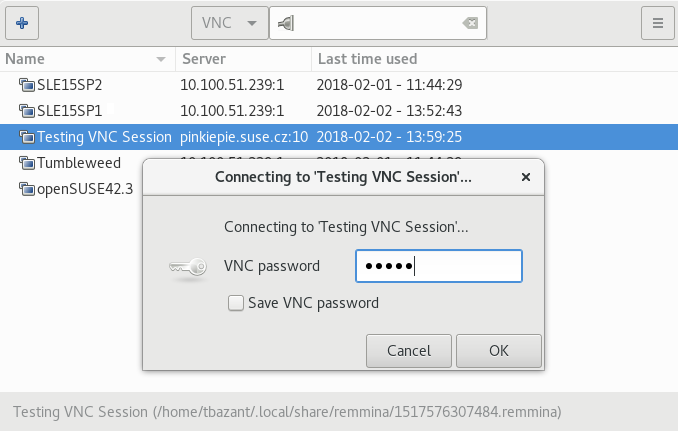
The QEMU VNC server can use TLS encryption for the session and x509 certificates for authentication. The server asks the client for a certificate and validates it against the CA certificate. Use this authentication type if your company provides an internal certificate authority.
qemu-system-x86_64 [...] -vnc :5,tls,x509verify=/etc/pki/qemu
You can combine password authentication with TLS encryption and x509 certificate authentication to create a two-layer authentication model for clients. Remember to set the password in the QEMU monitor after you run the following command:
qemu-system-x86_64 [...] -vnc :5,password,tls,x509verify=/etc/pki/qemu \
-monitor stdio
Simple Authentication and Security Layer (SASL) is a framework for authentication and data security in Internet protocols. It integrates several authentication mechanisms, like PAM, Kerberos, LDAP and more. SASL keeps its own user database, so the connecting user accounts do not need to exist on VM Host Server.
For security reasons, you are advised to combine SASL authentication with TLS encryption and x509 certificates:
qemu-system-x86_64 [...] -vnc :5,tls,x509,sasl -monitor stdio
5 I/O virtualization #
VM Guests not only share CPU and memory resources of the host system, but also the I/O subsystem. Because software I/O virtualization techniques deliver less performance than bare metal, hardware solutions that deliver almost “native” performance have been developed recently. SUSE Linux Enterprise Server supports the following I/O virtualization techniques:
- Full virtualization
Fully Virtualized (FV) drivers emulate widely supported real devices, which can be used with an existing driver in the VM Guest. The guest is also called Hardware Virtual Machine (HVM). Since the physical device on the VM Host Server may differ from the emulated one, the hypervisor needs to process all I/O operations before handing them over to the physical device. Therefore all I/O operations need to traverse two software layers, a process that not only significantly impacts I/O performance, but also consumes CPU time.
- Paravirtualization
Paravirtualization (PV) allows direct communication between the hypervisor and the VM Guest. With less overhead involved, performance is much better than with full virtualization. However, paravirtualization requires either the guest operating system to be modified to support the paravirtualization API, or availability of paravirtualized drivers. For a list of guest operating systems supporting paravirtualization, refer to the section Availability of paravirtualized drivers in the article Virtualization Limits and Support.
- PVHVM
This type of virtualization enhances HVM (see Full virtualization) with paravirtualized (PV) drivers, and PV interrupt and timer handling.
- VFIO
VFIO stands for Virtual Function I/O and is a new user-level driver framework for Linux. It replaces the traditional KVM PCI pass-through device assignment. The VFIO driver exposes direct device access to user space in a secure memory Input/Output Memory Management Unit (IOMMU) protected environment. With VFIO, a VM Guest can directly access hardware devices on the VM Host Server (pass-through), avoiding performance issues caused by emulation in performance critical paths. This method does not allow to share devices—each device can only be assigned to a single VM Guest. VFIO needs to be supported by the VM Host Server CPU, chipset and the BIOS/EFI.
Compared to the legacy KVM PCI device assignment, VFIO has the following advantages:
Resource access is compatible with UEFI Secure Boot.
Device is isolated and its memory access protected.
Offers a user space device driver with more flexible device ownership model.
Is independent of KVM technology, and not bound to x86 architecture only.
In SUSE Linux Enterprise Server the USB and PCI pass-through methods of device assignment are considered deprecated and are superseded by the VFIO model.
- SR-IOV
The latest I/O virtualization technique, Single Root I/O Virtualization SR-IOV combines the benefits of the aforementioned techniques—performance and the ability to share a device with several VM Guests. SR-IOV requires special I/O devices, that are capable of replicating resources so they appear as multiple separate devices. Each such “pseudo” device can be directly used by a single guest. However, for network cards for example the number of concurrent queues that can be used is limited, potentially reducing performance for the VM Guest compared to paravirtualized drivers. On the VM Host Server, SR-IOV must be supported by the I/O device, the CPU and chipset, the BIOS/EFI and the hypervisor—.
To be able to use the VFIO and SR-IOV features, the VM Host Server needs to fulfill the following requirements:
IOMMU needs to be enabled in the BIOS/EFI.
For Intel CPUs, the kernel parameter
intel_iommu=onneeds to be provided on the kernel command line. For more information, see https://github.com/torvalds/linux/blob/master/Documentation/admin-guide/kernel-parameters.txt#L1951.The VFIO infrastructure needs to be available. This can be achieved by loading the kernel module
vfio_pci.
6 QEMU guest agent #
The QEMU guest agent (GA) runs inside the VM Guest and allows the
VM Host Server to run commands in the guest operating system via libvirt. It
supports many functions—for example, getting details about guest file
systems, freezing and thawing file systems, or suspending or rebooting a
guest.
QEMU GA is included in the qemu-guest-agent package and is installed, configured and activated by default on KVM virtual machines.
6.1 Running QEMU GA commands #
QEMU GA includes many built-in commands that do not have direct
libvirt counterparts. Refer to the QEMU GA documentation to
find the complete list. You can run all the QEMU GA commands using
the general-purpose libvirt command
qemu-agent-command:
virsh qemu-agent-command DOMAIN_NAME '{"execute":"QEMU_GA_COMMAND"}'For example:
>sudovirsh qemu-agent-command mars '{"execute":"guest-info"}' --pretty{ "return": { "version": "4.2.0", "supported_commands": [ { "enabled": true, "name": "guest-get-osinfo", "success-response": true }, [...]
6.2 virsh commands that require QEMU GA #
Several virsh commands require QEMU GA for their functionality. For
example, the following ones:
virsh guestinfoPrints information about the guest from the guest's point of view.
virsh guestvcpusQueries or changes the state of virtual CPUs from the guest's point of view.
virsh set-user-passwordSets the password for a user account in the guest.
virsh domfsinfoShows a list of mounted file systems within the running domain.
virsh dompmsuspendSuspends a running guest.
6.3 Enhancing libvirt commands #
If QEMU GA is enabled inside the guest, several virsh subcommands
have enhanced functionality when run in the agent
mode. The following list includes only certain examples of them. For a
complete list, see the virsh man page and search for the
agent string.
virsh shutdown --mode agentandvirsh reboot --mode agentThis method of shutting down or rebooting leaves the guest clean for its next run, similar to the ACPI method.
virsh domfsfreezeandvirsh domfsthawInstructs the guest to make its file system quiescent—to flush all I/O operations in the cache and leave volumes in a consistent state, so that no checks are needed when they are remounted.
virsh setvcpus --guestChanges the number of CPUs assigned to a guest.
virsh domifaddr --source agentQueries the QEMU GA for the guest's IP address.
virsh vcpucount --guestPrints information about the virtual CPU counts from the perspective of the guest.
6.4 More information #
A complete list of commands supported by the QEMU GA is at https://www.qemu.org/docs/master/interop/qemu-ga-ref.html.
The
virshman page (man 1 virsh) includes descriptions of the commands that support the QEMU GA interface.
7 Software TPM emulator #
The Trusted Platform Module (TPM) is a cryptoprocessor that secures hardware using cryptographic keys. For developers who use the TPM to develop security features, a software TPM emulator is a convenient solution. Compared to a hardware TPM device, the emulator has no limit on the number of guests that can access it. Also, it is simple to switch between TPM versions 1.2 and 2.0. QEMU supports the software TPM emulator that is included in the swtpm package.
Prerequisites:
A working
libvirtvirtualization environment. Refer to the installation guide and install one of the provided virtualization solutions.
7.1 Installation #
To use the software TPM emulator, install the swtpm package:
>sudozypper install swtpm
7.2 Using swtpm with QEMU #
swtpm provides three types of interface:
socket, chardev, and
cuse. This procedure focuses on the
socket interface.
Create a directory
mytpm0inside the VM directory to store the TPM states—for example,/var/lib/libvirt/qemu/mars:>sudomkdir /var/lib/libvirt/qemu/mars/mytpm0Start
swtpm. It creates a socket file that QEMU can use—for example,/var/lib/libvirt/qemu/mars:>sudoswtpm socket --tpmstate dir=/var/lib/libvirt/qemu/mars/mytpm0 \ --ctrl type=unixio,path=/var/lib/libvirt/qemu/mars/mytpm0/swtpm-sock \ --log level=20Tip: TPM version 2.0By default,
swtpmstarts a TPM version 1.2 emulator and stores its states in thetpm-00.permalldirectory. To create a TPM 2.0 instance, run:>sudoswtpm socket --tpm2 --tpmstate dir=/var/lib/libvirt/qemu/mars/mytpm0 \ --ctrl type=unixio,path=/var/lib/libvirt/qemu/mars/mytpm0/swtpm-sock \ --log level=20TPM 2.0 states are stored in the
tpm2-00.permalldirectory.Add the following command-line parameters to the
qemu-system-ARCHcommand:>qemu-system-x86_64 \ [...] -chardev socket,id=chrtpm,path=/var/lib/libvirt/qemu/mars/mytpm0/swtpm-sock \ -tpmdev emulator,id=tpm0,chardev=chrtpm \ -device tpm-tis,tpmdev=tpm0Verify that the TPM device is available in the guest by running the following command:
>tpm_versionTPM 1.2 Version Info: Chip Version: 1.2.18.158 Spec Level: 2 Errata Revision: 3 TPM Vendor ID: IBM TPM Version: 01010000 Manufacturer Info: 49424d00
7.3 Using swtpm with libvirt #
To use swtpm with libvirt, add the following TPM device to the guest
XML specification:
 <devices>
  <tpm model='tpm-tis'>
   <backend type='emulator' version='2.0'/>
  </tpm>
 </devices>
libvirt starts swtpm for the guest automatically. You do not need to
start it manually in advance. The corresponding
permall file is created in
/var/lib/libvirt/swtpm/VM_UUID.
7.4 TPM measurement with OVMF firmware #
If the guest uses the Open Virtual Machine Firmware (OVMF), it measures
components with TPM. You can find the event log in
/sys/kernel/security/tpm0/binary_bios_measurements.
7.5 More information #
Wikipedia offers a thorough description of the TPM at the page https://en.wikipedia.org/wiki/Trusted_Platform_Module.
Configuring a specific virtualization environment on SUSE Linux Enterprise Server is described in Installation of virtualization components.
Details on the use of swtpm are on its man page (
man 8 swtpm).A detailed
libvirtspecification of TPM is at https://libvirt.org/formatdomain.html#elementsTpm.A description of enabling UEFI firmware by using OVMF is available in Advanced UEFI configuration.
8 libguestfs #
VM Guests consist of disk images and definition files. Manually accessing and manipulating these guest components (outside of normal hypervisor processes) is possible, but inherently dangerous and risks compromising data integrity. libguestfs is a C library and a corresponding set of tools designed for safely accessing and modifying VM Guest disk images—outside of normal hypervisor processes, but without the risk normally associated with manual editing.
Using libguestfs tools is fully supported on the AMD64/Intel 64 architecture only.
8.1 VM Guest manipulation overview #
8.1.1 VM Guest manipulation risk #
As disk images and definition files are simply another type of file in a Linux environment, it is possible to use many tools to access, edit and write to these files. When used correctly, such tools can be an important part of guest administration. However, even correct usage of these tools is not without risk. Risks that should be considered when manually manipulating guest disk images include:
Data corruption: concurrently accessing images, by the host machine or another node in a cluster, can cause changes to be lost or data corruption to occur if virtualization protection layers are bypassed.
Security: mounting disk images as loop devices requires root access. While an image is loop mounted, other users and processes can potentially access the disk contents.
Administrator error: bypassing virtualization layers correctly requires advanced understanding of virtual components and tools. Failing to isolate the images or failing to clean up properly after changes have been made can lead to further problems once back in virtualization control.
8.1.2 libguestfs design #
libguestfs C library has been designed to safely and securely create, access and modify virtual machine (VM Guest) disk images. It also provides additional language bindings: for Perl, Python, and Ruby. libguestfs can access VM Guest disk images without needing root and with multiple layers of defense against rogue disk images.
libguestfs provides many tools designed for accessing and modifying VM Guest disk images and contents. These tools provide such capabilities as: viewing and editing files inside guests, scripting changes to VM Guests, monitoring disk used/free statistics, creating guests, doing V2V or P2V migrations, performing backups, cloning VM Guests, formatting disks, and resizing disks.
You must not use libguestfs tools on live virtual machines. Doing so may result in disk corruption in the VM Guest. libguestfs tools try to stop you from doing this, but cannot catch all cases.
However, most commands have the --ro (read-only) option. With this
option, you can run a command on a live virtual machine. The results may be strange or
inconsistent but you do not risk disk corruption.
8.2 Package installation #
libguestfs is shipped through four packages:
libguestfs0: which provides the main C libraryguestfs-data: which contains the appliance files used when launching images (stored in/usr/lib64/guestfs)guestfs-tools: the core guestfs tools, man pages, and the/etc/libguestfs-tools.confconfiguration file.guestfs-winsupport: provides support for Windows file guests in the guestfs tools. This package only needs to be installed to handle Windows guests, for example when converting a Windows guest to KVM.
To install guestfs tools, run:
>sudozypper in guestfs-tools
8.3 Guestfs tools #
8.3.1 Modifying virtual machines #
The set of tools found within the guestfs-tools package is used for accessing and modifying
virtual machine disk images. This functionality is provided through a familiar shell
interface with built-in safeguards which ensure image integrity. Guestfs tools shells
expose all capabilities of the guestfs API, and create an appliance on the fly using the
packages installed on the machine and the files found in
/usr/lib64/guestfs.
8.3.2 Supported file systems and disk images #
Guestfs tools support multiple file systems including:
Ext2, Ext3, Ext4
XFS
Btrfs
Multiple disk image formats are also supported:
raw
qcow2
Guestfs may also support Windows* file systems (VFAT, NTFS), BSD* and Apple* file systems, and other disk image formats (VMDK, VHDX...). However, these file systems and disk image formats are unsupported on SUSE Linux Enterprise Server.
8.3.3 virt-rescue #
virt-rescue is similar to a rescue CD, but for virtual machines, and
without the need for a CD. virt-rescue presents users with a rescue
shell and several simple recovery tools which can be used to examine and correct problems
within a virtual machine or disk image.
>virt-rescue -a sles.qcow2Welcome to virt-rescue, the libguestfs rescue shell. Note: The contents of / are the rescue appliance. You need to mount the guest's partitions under /sysroot before you can examine them. A helper script for that exists: mount-rootfs-and-chroot.sh /dev/sda1 <rescue> [ 67.194384] EXT4-fs (sda1): mounting ext3 file system using the ext4 subsystem [ 67.199292] EXT4-fs (sda1): mounted filesystem with ordered data mode. Opts: (null) mount: /dev/sda1 mounted on /sysroot. mount: /dev bound on /sysroot/dev. mount: /dev/pts bound on /sysroot/dev/pts. mount: /proc bound on /sysroot/proc. mount: /sys bound on /sysroot/sys. Directory: /root Thu Jun 5 13:20:51 UTC 2014 (none):~ #
You are now running the VM Guest in rescue mode:
(none):~ # cat /etc/fstab
devpts  /dev/pts          devpts  mode=0620,gid=5 0 0
proc    /proc             proc    defaults        0 0
sysfs   /sys              sysfs   noauto          0 0
debugfs /sys/kernel/debug debugfs noauto          0 0
usbfs   /proc/bus/usb     usbfs   noauto          0 0
tmpfs   /run              tmpfs   noauto          0 0
/dev/disk/by-id/ata-QEMU_HARDDISK_QM00001-part1 / ext3 defaults 1 1
8.3.4 virt-resize #
virt-resize is used to resize a virtual machine disk, making it larger
or smaller overall, and resizing or deleting any partitions contained within.
8.3.4.1 Expanding a disk #
First, with virtual machine powered off, determine the size of the partitions available on this virtual machine:
>virt-filesystems --long --parts --blkdevs -h -a sles.qcow2Name Type MBR Size Parent /dev/sda1 partition 83 16G /dev/sda /dev/sda device - 16G -
virt-resize cannot do in-place disk modifications—there must
be sufficient space to store the resized output disk. Use the
truncate command to create a file of suitable size:
>truncate -s 32G outdisk.img
Use virt-resize to resize the disk image.
virt-resize requires two mandatory parameters for the input and
output images:
>virt-resize --expand /dev/sda1 sles.qcow2 outdisk.imgExamining sles.qcow2 ... ********** Summary of changes: /dev/sda1: This partition will be resized from 16,0G to 32,0G. The filesystem ext3 on /dev/sda1 will be expanded using the 'resize2fs' method. ********** Setting up initial partition table on outdisk.img ... Copying /dev/sda1 ... Expanding /dev/sda1 using the 'resize2fs' method ... Resize operation completed with no errors. Before deleting the old disk, carefully check that the resized disk boots and works correctly.
Confirm the image was resized properly:
>virt-filesystems --long --parts --blkdevs -h -a outdisk.imgName Type MBR Size Parent /dev/sda1 partition 83 32G /dev/sda /dev/sda device - 32G -
Bring up the VM Guest using the new disk image and confirm correct operation before deleting the old image.
8.3.5 Other virt-* tools #
There are guestfs tools to simplify administrative tasks—such as viewing and editing files, or obtaining information on the virtual machine.
8.3.5.1 virt-filesystems #
This tool is used to report information regarding file systems, partitions and logical volumes in a disk image or virtual machine.
>virt-filesystems -l -a sles.qcow2Name Type VFS Label Size Parent /dev/sda1 filesystem ext3 - 17178820608 -
8.3.5.2 virt-ls #
virt-ls lists file names, file sizes, checksums, extended attributes
and more from a virtual machine or disk image. Multiple directory names can be given, in
which case the output from each is concatenated. To list directories from a libvirt
guest, use the -d option to specify the name of the guest. For a disk
image, use the -a option.
>virt-ls -h -lR -a sles.qcow2 /var/log/d 0755 776 /var/log - 0640 0 /var/log/NetworkManager - 0644 23K /var/log/Xorg.0.log - 0644 23K /var/log/Xorg.0.log.old d 0700 482 /var/log/YaST2 - 0644 512 /var/log/YaST2/_dev_vda - 0644 59 /var/log/YaST2/arch.info - 0644 473 /var/log/YaST2/curl_log - 0644 1.5K /var/log/YaST2/disk_vda.info - 0644 1.4K /var/log/YaST2/disk_vda.info-1 [...]
8.3.5.3 virt-cat #
virt-cat is a command-line tool to display the contents of a file that
exists in the named virtual machine (or disk image). Multiple file names can be given, in
which case they are concatenated together. Each file name must be specified by its
absolute path, starting at the root directory with /.
>virt-cat -a sles.qcow2 /etc/fstabdevpts /dev/pts devpts mode=0620,gid=5 0 0 proc /proc proc defaults 0 0
8.3.5.4 virt-df #
virt-df is a command-line tool to display free space on virtual
machine file systems. Unlike other tools, it not only displays the size of disk allocated
to a virtual machine, but can look inside disk images to show how much space is being
used.
>virt-df -a sles.qcow2Filesystem 1K-blocks Used Available Use% sles.qcow2:/dev/sda1 16381864 520564 15022492 4%
8.3.5.5 virt-edit #
virt-edit is a command-line tool capable of editing files that reside
in the named virtual machine (or disk image).
8.3.5.6 virt-tar-in/out #
virt-tar-in unpacks an uncompressed TAR archive into a virtual machine
disk image or named libvirt domain. virt-tar-out packs a virtual
machine disk image directory into a TAR archive.
>virt-tar-out -a sles.qcow2 /home homes.tar
8.3.5.7 virt-copy-in/out #
virt-copy-in copies files and directories from the local disk into a
virtual machine disk image or named libvirt domain. virt-copy-out
copies files and directories out of a virtual machine disk image or named libvirt domain.
>virt-copy-in -a sles.qcow2 data.tar /tmp/
>virt-ls -a sles.qcow2 /tmp/.ICE-unix .X11-unix data.tar
8.3.5.8 virt-log #
virt-log shows the log files of the named libvirt domain, virtual
machine or disk image. If the package guestfs-winsupport is installed
it can also show the event log of a Windows virtual machine disk image.
>virt-log -a windows8.qcow2<?xml version="1.0" encoding="utf-8" standalone="yes" ?> <Events> <Event xmlns="http://schemas.microsoft.com/win/2004/08/events/event"><System><Provider Name="EventLog"></Provider> <EventID Qualifiers="32768">6011</EventID> <Level>4</Level> <Task>0</Task> <Keywords>0x0080000000000000</Keywords> <TimeCreated SystemTime="2014-09-12 05:47:21"></TimeCreated> <EventRecordID>1</EventRecordID> <Channel>System</Channel> <Computer>windows-uj49s6b</Computer> <Security UserID=""></Security> </System> <EventData><Data><string>WINDOWS-UJ49S6B</string> <string>WIN-KG190623QG4</string> </Data> <Binary></Binary> </EventData> </Event> ...
8.3.6 guestfish #
guestfish is a shell and command-line tool for examining and modifying
virtual machine file systems. It uses libguestfs and exposes all the functionality of the
guestfs API.
Examples of usage:
>guestfish -a disk.img <<EOF run list-filesystems EOF
>guestfishWelcome to guestfish, the guest filesystem shell for editing virtual machine filesystems and disk images. Type: 'help' for help on commands 'man' to read the manual 'quit' to quit the shell ><fs> add sles.qcow2 ><fs> run ><fs> list-filesystems /dev/sda1: ext3 ><fs> mount /dev/sda1 / cat /etc/fstab devpts /dev/pts devpts mode=0620,gid=5 0 0 proc /proc proc defaults 0 0 sysfs /sys sysfs noauto 0 0 debugfs /sys/kernel/debug debugfs noauto 0 0 usbfs /proc/bus/usb usbfs noauto 0 0 tmpfs /run tmpfs noauto 0 0 /dev/disk/by-id/ata-QEMU_HARDDISK_QM00001-part1 / ext3 defaults 1 1
8.3.7 Converting a physical machine into a KVM guest #
Libguestfs provides tools to help convert physical machines into KVM guests. This section covers a special case: converting a bare metal machine into a KVM guest.
Converting a physical machine requires collecting information about it and transmitting
this to a conversion server. This is achieved by running a live system prepared with
virt-p2v and KIWI NG tools on the machine.
8.3.7.1 Using virt-p2v #
Install the needed packages with the command:
>sudozypper in virt-p2v kiwi-desc-isoboot
These steps document how to create an ISO image to create a bootable DVD.
Alternatively, you can create a PXE boot image instead; for more information about
building PXE images with KIWI NG, see man virt-p2v-make-kiwi.
Create a KIWI NG configuration:
>virt-p2v-make-kiwi -o /tmp/p2v.kiwi
The -o defines where to create the KIWI NG configuration.
Edit the config.xml file in the generated configuration if needed.
For example, in config.xml adjust the keyboard layout of the live
system.
Build the ISO image with kiwi:
>kiwi --build /tmp/p2v.kiwi \ -d /tmp/build \ --ignore-repos \ --add-repo http://URL_TO_REPOSITORIES \ --type iso
--buildThe directory where the KIWI NG configuration was generated.
-dThe directory where KIWI NG will place the generated ISO image and other intermediary build results.
--add-repoThe URL of a package repository, as found with
zypper lr -d. Use one--add-repoparameter per repository.
Burn the ISO on a DVD or a USB stick. With such a medium, boot the machine to be converted.
After the system is started, enter the connection details of the conversion
server. This server is a machine with the
virt-v2v package installed.
If the network setup is more complex than a DHCP client, click the button to open the YaST network configuration dialog.
Click the button to allow moving to the next page of the wizard.
Select the disks and network interfaces to be converted and define the VM data like the amount of allocated CPUs, memory and the virtual machine name.
If not defined, the created disk image format is raw by default.
This can be changed by entering the desired format in the field.
There are two possibilities to generate the virtual machine: either using the
local or the libvirt output. The first one
places the virtual machine disk image and configuration in the path defined in the
field. These can then be used to define a new
libvirt-handled guest using virsh. The second method creates a new
libvirt-handled guest with the disk image placed in the pool defined in the
field.
Click to start it.
8.4 Troubleshooting #
8.4.1 Btrfs-related problems #
When using the guestfs tools on an image with Btrfs root partition (the default with SUSE Linux Enterprise Server) the following error message may be displayed:
>virt-ls -a /path/to/sles12sp2.qcow2 /virt-ls: multi-boot operating systems are not supported If using guestfish '-i' option, remove this option and instead use the commands 'run' followed by 'list-filesystems'. You can then mount file systems you want by hand using the 'mount' or 'mount-ro' command. If using guestmount '-i', remove this option and choose the filesystem(s) you want to see by manually adding '-m' option(s). Use 'virt-filesystems' to see what file systems are available. If using other virt tools, multi-boot operating systems won't work with these tools. Use the guestfish equivalent commands (see the virt tool manual page).
This is often caused by the presence of snapshots in the guests. In this case guestfs does
not know which snapshot to bootstrap. To force the use of a snapshot, use the
-m parameter as follows:
>virt-ls -m /dev/sda2:/:subvol=@/.snapshots/2/snapshot -a /path/to/sles12sp2.qcow2 /
8.4.2 Environment #
When troubleshooting problems within a libguestfs appliance, the environment variable
LIBGUESTFS_DEBUG=1 can be used to enable debug messages. To output
each command/API call in a format that is similar to guestfish commands, use the
environment variable LIBGUESTFS_TRACE=1.
8.4.3 libguestfs-test-tool #
libguestfs-test-tool is a test program that checks if basic libguestfs
functionality is working. It prints a large amount of diagnostic messages and details of
the guestfs environment, then create a test image and try to start it. If it runs to
completion successfully, the following message should be seen near the end:
===== TEST FINISHED OK =====
8.5 More information #
9 For more information #
For further steps in virtualization, refer to the following sources:
Converting VMware Virtual Machines to KVM with virt-v2v
10 Legal Notice #
Copyright© 2006– 2026 SUSE LLC and contributors. All rights reserved.
Permission is granted to copy, distribute and/or modify this document under the terms of the GNU Free Documentation License, Version 1.2 or (at your option) version 1.3; with the Invariant Section being this copyright notice and license. A copy of the license version 1.2 is included in the section entitled “GNU Free Documentation License”.
For SUSE trademarks, see https://www.suse.com/company/legal/. All other third-party trademarks are the property of their respective owners. Trademark symbols (®, ™ etc.) denote trademarks of SUSE and its affiliates. Asterisks (*) denote third-party trademarks.
All information found in this book has been compiled with utmost attention to detail. However, this does not guarantee complete accuracy. Neither SUSE LLC, its affiliates, the authors, nor the translators shall be held liable for possible errors or the consequences thereof.
GNU Free Documentation License
Copyright (C) 2000, 2001, 2002 Free Software Foundation, Inc. 51 Franklin St, Fifth Floor, Boston, MA 02110-1301 USA. Everyone is permitted to copy and distribute verbatim copies of this license document, but changing it is not allowed.
0. PREAMBLE #
The purpose of this License is to make a manual, textbook, or other functional and useful document "free" in the sense of freedom: to assure everyone the effective freedom to copy and redistribute it, with or without modifying it, either commercially or non-commercially. Secondarily, this License preserves for the author and publisher a way to get credit for their work, while not being considered responsible for modifications made by others.
This License is a kind of "copyleft", which means that derivative works of the document must themselves be free in the same sense. It complements the GNU General Public License, which is a copyleft license designed for free software.
We have designed this License to use it for manuals for free software, because free software needs free documentation: a free program should come with manuals providing the same freedoms that the software does. But this License is not limited to software manuals; it can be used for any textual work, regardless of subject matter or whether it is published as a printed book. We recommend this License principally for works whose purpose is instruction or reference.
1. APPLICABILITY AND DEFINITIONS #
This License applies to any manual or other work, in any medium, that contains a notice placed by the copyright holder saying it can be distributed under the terms of this License. Such a notice grants a world-wide, royalty-free license, unlimited in duration, to use that work under the conditions stated herein. The "Document", below, refers to any such manual or work. Any member of the public is a licensee, and is addressed as "you". You accept the license if you copy, modify or distribute the work in a way requiring permission under copyright law.
A "Modified Version" of the Document means any work containing the Document or a portion of it, either copied verbatim, or with modifications and/or translated into another language.
A "Secondary Section" is a named appendix or a front-matter section of the Document that deals exclusively with the relationship of the publishers or authors of the Document to the Document's overall subject (or to related matters) and contains nothing that could fall directly within that overall subject. (Thus, if the Document is in part a textbook of mathematics, a Secondary Section may not explain any mathematics.) The relationship could be a matter of historical connection with the subject or with related matters, or of legal, commercial, philosophical, ethical or political position regarding them.
The "Invariant Sections" are certain Secondary Sections whose titles are designated, as being those of Invariant Sections, in the notice that says that the Document is released under this License. If a section does not fit the above definition of Secondary then it is not allowed to be designated as Invariant. The Document may contain zero Invariant Sections. If the Document does not identify any Invariant Sections then there are none.
The "Cover Texts" are certain short passages of text that are listed, as Front-Cover Texts or Back-Cover Texts, in the notice that says that the Document is released under this License. A Front-Cover Text may be at most 5 words, and a Back-Cover Text may be at most 25 words.
A "Transparent" copy of the Document means a machine-readable copy, represented in a format whose specification is available to the general public, that is suitable for revising the document straightforwardly with generic text editors or (for images composed of pixels) generic paint programs or (for drawings) some widely available drawing editor, and that is suitable for input to text formatters or for automatic translation to a variety of formats suitable for input to text formatters. A copy made in an otherwise Transparent file format whose markup, or absence of markup, has been arranged to thwart or discourage subsequent modification by readers is not Transparent. An image format is not Transparent if used for any substantial amount of text. A copy that is not "Transparent" is called "Opaque".
Examples of suitable formats for Transparent copies include plain ASCII without markup, Texinfo input format, LaTeX input format, SGML or XML using a publicly available DTD, and standard-conforming simple HTML, PostScript or PDF designed for human modification. Examples of transparent image formats include PNG, XCF and JPG. Opaque formats include proprietary formats that can be read and edited only by proprietary word processors, SGML or XML for which the DTD and/or processing tools are not generally available, and the machine-generated HTML, PostScript or PDF produced by some word processors for output purposes only.
The "Title Page" means, for a printed book, the title page itself, plus such following pages as are needed to hold, legibly, the material this License requires to appear in the title page. For works in formats which do not have any title page as such, "Title Page" means the text near the most prominent appearance of the work's title, preceding the beginning of the body of the text.
A section "Entitled XYZ" means a named subunit of the Document whose title either is precisely XYZ or contains XYZ in parentheses following text that translates XYZ in another language. (Here XYZ stands for a specific section name mentioned below, such as "Acknowledgements", "Dedications", "Endorsements", or "History".) To "Preserve the Title" of such a section when you modify the Document means that it remains a section "Entitled XYZ" according to this definition.
The Document may include Warranty Disclaimers next to the notice which states that this License applies to the Document. These Warranty Disclaimers are considered to be included by reference in this License, but only as regards disclaiming warranties: any other implication that these Warranty Disclaimers may have is void and has no effect on the meaning of this License.
2. VERBATIM COPYING #
You may copy and distribute the Document in any medium, either commercially or non-commercially, provided that this License, the copyright notices, and the license notice saying this License applies to the Document are reproduced in all copies, and that you add no other conditions whatsoever to those of this License. You may not use technical measures to obstruct or control the reading or further copying of the copies you make or distribute. However, you may accept compensation in exchange for copies. If you distribute a large enough number of copies you must also follow the conditions in section 3.
You may also lend copies, under the same conditions stated above, and you may publicly display copies.
3. COPYING IN QUANTITY #
If you publish printed copies (or copies in media that commonly have printed covers) of the Document, numbering more than 100, and the Document's license notice requires Cover Texts, you must enclose the copies in covers that carry, clearly and legibly, all these Cover Texts: Front-Cover Texts on the front cover, and Back-Cover Texts on the back cover. Both covers must also clearly and legibly identify you as the publisher of these copies. The front cover must present the full title with all words of the title equally prominent and visible. You may add other material on the covers in addition. Copying with changes limited to the covers, as long as they preserve the title of the Document and satisfy these conditions, can be treated as verbatim copying in other respects.
If the required texts for either cover are too voluminous to fit legibly, you should put the first ones listed (as many as fit reasonably) on the actual cover, and continue the rest onto adjacent pages.
If you publish or distribute Opaque copies of the Document numbering more than 100, you must either include a machine-readable Transparent copy along with each Opaque copy, or state in or with each Opaque copy a computer-network location from which the general network-using public has access to download using public-standard network protocols a complete Transparent copy of the Document, free of added material. If you use the latter option, you must take reasonably prudent steps, when you begin distribution of Opaque copies in quantity, to ensure that this Transparent copy will remain thus accessible at the stated location until at least one year after the last time you distribute an Opaque copy (directly or through your agents or retailers) of that edition to the public.
It is requested, but not required, that you contact the authors of the Document well before redistributing any large number of copies, to give them a chance to provide you with an updated version of the Document.
4. MODIFICATIONS #
You may copy and distribute a Modified Version of the Document under the conditions of sections 2 and 3 above, provided that you release the Modified Version under precisely this License, with the Modified Version filling the role of the Document, thus licensing distribution and modification of the Modified Version to whoever possesses a copy of it. In addition, you must do these things in the Modified Version:
Use in the Title Page (and on the covers, if any) a title distinct from that of the Document, and from those of previous versions (which should, if there were any, be listed in the History section of the Document). You may use the same title as a previous version if the original publisher of that version gives permission.
List on the Title Page, as authors, one or more persons or entities responsible for authorship of the modifications in the Modified Version, together with at least five of the principal authors of the Document (all of its principal authors, if it has fewer than five), unless they release you from this requirement.
State on the Title page the name of the publisher of the Modified Version, as the publisher.
Preserve all the copyright notices of the Document.
Add an appropriate copyright notice for your modifications adjacent to the other copyright notices.
Include, immediately after the copyright notices, a license notice giving the public permission to use the Modified Version under the terms of this License, in the form shown in the Addendum below.
Preserve in that license notice the full lists of Invariant Sections and required Cover Texts given in the Document's license notice.
Include an unaltered copy of this License.
Preserve the section Entitled "History", Preserve its Title, and add to it an item stating at least the title, year, new authors, and publisher of the Modified Version as given on the Title Page. If there is no section Entitled "History" in the Document, create one stating the title, year, authors, and publisher of the Document as given on its Title Page, then add an item describing the Modified Version as stated in the previous sentence.
Preserve the network location, if any, given in the Document for public access to a Transparent copy of the Document, and likewise the network locations given in the Document for previous versions it was based on. These may be placed in the "History" section. You may omit a network location for a work that was published at least four years before the Document itself, or if the original publisher of the version it refers to gives permission.
For any section Entitled "Acknowledgements" or "Dedications", Preserve the Title of the section, and preserve in the section all the substance and tone of each of the contributor acknowledgements and/or dedications given therein.
Preserve all the Invariant Sections of the Document, unaltered in their text and in their titles. Section numbers or the equivalent are not considered part of the section titles.
Delete any section Entitled "Endorsements". Such a section may not be included in the Modified Version.
Do not retitle any existing section to be Entitled "Endorsements" or to conflict in title with any Invariant Section.
Preserve any Warranty Disclaimers.
If the Modified Version includes new front-matter sections or appendices that qualify as Secondary Sections and contain no material copied from the Document, you may at your option designate some or all of these sections as invariant. To do this, add their titles to the list of Invariant Sections in the Modified Version's license notice. These titles must be distinct from any other section titles.
You may add a section Entitled "Endorsements", provided it contains nothing but endorsements of your Modified Version by various parties--for example, statements of peer review or that the text has been approved by an organization as the authoritative definition of a standard.
You may add a passage of up to five words as a Front-Cover Text, and a passage of up to 25 words as a Back-Cover Text, to the end of the list of Cover Texts in the Modified Version. Only one passage of Front-Cover Text and one of Back-Cover Text may be added by (or through arrangements made by) any one entity. If the Document already includes a cover text for the same cover, previously added by you or by arrangement made by the same entity you are acting on behalf of, you may not add another; but you may replace the old one, on explicit permission from the previous publisher that added the old one.
The author(s) and publisher(s) of the Document do not by this License give permission to use their names for publicity for or to assert or imply endorsement of any Modified Version.
5. COMBINING DOCUMENTS #
You may combine the Document with other documents released under this License, under the terms defined in section 4 above for modified versions, provided that you include in the combination all of the Invariant Sections of all of the original documents, unmodified, and list them all as Invariant Sections of your combined work in its license notice, and that you preserve all their Warranty Disclaimers.
The combined work need only contain one copy of this License, and multiple identical Invariant Sections may be replaced with a single copy. If there are multiple Invariant Sections with the same name but different contents, make the title of each such section unique by adding at the end of it, in parentheses, the name of the original author or publisher of that section if known, or else a unique number. Make the same adjustment to the section titles in the list of Invariant Sections in the license notice of the combined work.
In the combination, you must combine any sections Entitled "History" in the various original documents, forming one section Entitled "History"; likewise combine any sections Entitled "Acknowledgements", and any sections Entitled "Dedications". You must delete all sections Entitled "Endorsements".
6. COLLECTIONS OF DOCUMENTS #
You may make a collection consisting of the Document and other documents released under this License, and replace the individual copies of this License in the various documents with a single copy that is included in the collection, provided that you follow the rules of this License for verbatim copying of each of the documents in all other respects.
You may extract a single document from such a collection, and distribute it individually under this License, provided you insert a copy of this License into the extracted document, and follow this License in all other respects regarding verbatim copying of that document.
7. AGGREGATION WITH INDEPENDENT WORKS #
A compilation of the Document or its derivatives with other separate and independent documents or works, in or on a volume of a storage or distribution medium, is called an "aggregate" if the copyright resulting from the compilation is not used to limit the legal rights of the compilation's users beyond what the individual works permit. When the Document is included in an aggregate, this License does not apply to the other works in the aggregate which are not themselves derivative works of the Document.
If the Cover Text requirement of section 3 is applicable to these copies of the Document, then if the Document is less than one half of the entire aggregate, the Document's Cover Texts may be placed on covers that bracket the Document within the aggregate, or the electronic equivalent of covers if the Document is in electronic form. Otherwise they must appear on printed covers that bracket the whole aggregate.
8. TRANSLATION #
Translation is considered a kind of modification, so you may distribute translations of the Document under the terms of section 4. Replacing Invariant Sections with translations requires special permission from their copyright holders, but you may include translations of some or all Invariant Sections in addition to the original versions of these Invariant Sections. You may include a translation of this License, and all the license notices in the Document, and any Warranty Disclaimers, provided that you also include the original English version of this License and the original versions of those notices and disclaimers. In case of a disagreement between the translation and the original version of this License or a notice or disclaimer, the original version will prevail.
If a section in the Document is Entitled "Acknowledgements", "Dedications", or "History", the requirement (section 4) to Preserve its Title (section 1) will typically require changing the actual title.
9. TERMINATION #
You may not copy, modify, sublicense, or distribute the Document except as expressly provided for under this License. Any other attempt to copy, modify, sublicense or distribute the Document is void, and will automatically terminate your rights under this License. However, parties who have received copies, or rights, from you under this License will not have their licenses terminated so long as such parties remain in full compliance.
10. FUTURE REVISIONS OF THIS LICENSE #
The Free Software Foundation may publish new, revised versions of the GNU Free Documentation License from time to time. Such new versions will be similar in spirit to the present version, but may differ in detail to address new problems or concerns. See https://www.gnu.org/copyleft/.
Each version of the License is given a distinguishing version number. If the Document specifies that a particular numbered version of this License "or any later version" applies to it, you have the option of following the terms and conditions either of that specified version or of any later version that has been published (not as a draft) by the Free Software Foundation. If the Document does not specify a version number of this License, you may choose any version ever published (not as a draft) by the Free Software Foundation.
ADDENDUM: How to use this License for your documents #
Copyright (c) YEAR YOUR NAME.
Permission is granted to copy, distribute and/or modify this document
under the terms of the GNU Free Documentation License, Version 1.2
or any later version published by the Free Software Foundation;
with no Invariant Sections, no Front-Cover Texts, and no Back-Cover Texts.
A copy of the license is included in the section entitled “GNU
Free Documentation License”.
If you have Invariant Sections, Front-Cover Texts and Back-Cover Texts, replace the “with...Texts.” line with this:
with the Invariant Sections being LIST THEIR TITLES, with the
Front-Cover Texts being LIST, and with the Back-Cover Texts being LIST.
If you have Invariant Sections without Cover Texts, or some other combination of the three, merge those two alternatives to suit the situation.
If your document contains nontrivial examples of program code, we recommend releasing these examples in parallel under your choice of free software license, such as the GNU General Public License, to permit their use in free software.
Acronyms #
- ACPI #
Advanced Configuration and Power Interface
An open standard that provides uniform device configuration and power management capabilities directly to the operating system.
- AER #
Advanced Error Reporting
A capability within the PCI Express specification that enables advanced reporting, logging and recovery from PCI bus errors.
- APIC #
Advanced Programmable Interrupt Controller
An architecture of interrupt controllers designed to efficiently manage and route hardware interrupts across multiprocessing systems.
- BDF #
Bus:Device:Function
A standard notation used to uniquely address and identify individual physical or virtual devices on a PCI/PCIe bus.
- CG #
Control Groups (cgroups)
A Linux kernel feature used to limit, account for, isolate and prioritize the resource usage (such as CPU, memory and disk I/O) of collections of processes.
- EDF #
Earliest Deadline First
A dynamic priority scheduling algorithm that provides intuitive, real-time CPU resource sharing based on strict time guarantees.
- EPT #
Extended Page Tables
Performance in a virtualized environment is close to that in a native environment. However, virtualization does create overhead. It comes from the virtualization of the CPU, the MMU, and the I/O devices. In some recent x86 processors, AMD and Intel have begun to provide hardware extensions to help bridge this performance gap. In 2006, both vendors introduced their first-generation hardware support for x86 virtualization with AMD-Virtualization (AMD-V) and Intel® VT-x technologies. Intel introduced its second generation of hardware support that incorporates MMU-virtualization, called Extended Page Tables (EPT). EPT-enabled systems can improve performance compared to using shadow paging for MMU virtualization. EPT increases memory access latencies for a few workloads. This cost can be reduced by effectively using large pages in the guest and the hypervisor.
- HVM #
Hardware Virtual Machine
A fully virtualized operating system instance running on hardware that natively supports virtualization extensions (such as Intel VT-x or AMD-V).
- IOMMU #
Input/Output Memory Management Unit
IOMMU (AMD* technology) is a memory management unit (MMU) that connects a direct memory access-capable (DMA-capable) I/O bus to the main memory.
- KSM #
Kernel Same-page Merging
A Linux kernel feature that allows for automatic sharing of identical memory pages between guests to save host memory. KVM is optimized to use KSM if enabled on the VM Host Server.
- MMU #
Memory Management Unit
A hardware component responsible for handling accesses to memory requested by the CPU. Its functions include translation of virtual addresses to physical addresses (that is, virtual memory management), memory protection, cache control, bus arbitration and, in simpler computer architectures (especially 8-bit systems), bank switching.
- PAE #
Physical Address Extension
A memory management feature that allows 32-bit x86 operating systems to address more than 4 GB of physical memory by expanding page table entries to 64 bits.
- PCID #
Process-Context Identifiers
A processor facility that caches information for multiple linear-address spaces so that the processor may retain cached information when software switches to a different linear address space. The INVPCID instruction is used for fine-grained TLB flush, which benefits the kernel.
- PCIe #
Peripheral Component Interconnect Express
A high-speed serial expansion bus standard designed to replace older PCI, PCI-X and AGP bus standards. PCIe has numerous improvements, including a higher maximum system bus throughput, a lower I/O pin count and a smaller physical footprint. Moreover, it also has a more detailed error detection and reporting mechanism (AER) and a native hotplug functionality. It is also backward compatible with PCI.
- PSE / PSE36 #
Page Size Extension / Page Size Extension 36-Bit
Hardware features in x86 processors that allow for pages larger than the traditional 4 KiB size. PSE-36 capability offers 4 more bits, in addition to the normal 10 bits, which are used inside a page directory entry pointing to a large page. This allows a large page to be located in a 36-bit address space.
- PT #
Page Table
The data structure used by a virtual memory system in a computer operating system to store the mapping between virtual addresses and physical addresses. Virtual addresses are those unique to the accessing process. Physical addresses are those unique to the hardware (RAM).
- QXL #
QXL Display Device
QXL is a cirrus VGA framebuffer (8M) driver for virtualized environment.
- RVI / NPT #
Rapid Virtualization Indexing / Nested Page Tables
AMD's second-generation hardware-assisted virtualization technology for the processor memory management unit (MMU).
- SATA #
Serial ATA
A computer bus interface that connects host bus adapters to mass storage devices, such as hard disks and optical drives.
- Seccomp2-based sandboxing #
Secure Computing Mode sandboxing
A sandboxed environment where only predetermined system calls are permitted for added protection against malicious behavior.
- SPICE #
Simple Protocol for Independent Computing Environments
An open-source remote display protocol designed for virtual environments to deliver high-quality graphics and audio streaming over networks.
- TCG #
Tiny Code Generator
The core component of the QEMU emulator that acts as a just-in-time compiler, translating target CPU instructions into host system architecture instructions.
- THP #
Transparent Huge Pages
A Linux kernel feature that allows CPUs to address memory using pages larger than the default 4 KB. This helps reduce memory consumption and CPU cache usage. KVM is optimized to use THP (via madvise and opportunistic methods) if enabled on the VM Host Server.
- TLB #
Translation Lookaside Buffer
A hardware cache that memory management hardware uses to improve virtual address translation speed. All current desktop, notebook and server processors use a TLB to map virtual and physical address spaces, and it is nearly always present in any hardware that uses virtual memory.
- VCPU #
Virtual Central Processing Unit
A software-defined scheduling entity managed by a hypervisor that represents a single physical CPU core allocated to a virtual machine.
- VDI #
Virtual Desktop Infrastructure
An IT architecture that hosts user desktop environments within virtual machines running on centralized data center servers.
- VFIO #
Virtual Function I/O
A Linux kernel framework that provides secure, direct user-space access to PCI devices.
- VHS #
Virtualization Host Server
A physical server hardware platform explicitly configured with a hypervisor to host, manage and run multiple virtual machines.
- VMCS #
Virtual Machine Control Structure
VMX non-root operation and VMX transitions are controlled by a data structure called a virtual-machine control structure (VMCS). Access to the VMCS is managed through a component of processor state called the VMCS pointer (one per logical processor). The value of the VMCS pointer is the 64-bit address of the VMCS. The VMCS pointer is read and written using the instructions VMPTRST and VMPTRLD. The VMM configures a VMCS using the VMREAD, VMWRITE, and VMCLEAR instructions. A VMM could use a different VMCS for each virtual machine that it supports. For a virtual machine with multiple logical processors (virtual processors), the VMM could use a different VMCS for each virtual processor.
- VMDq #
Virtual Machine Device Queues
Multi-queue network adapters that support multiple VMs at the hardware level, having separate packet queues associated with the different hosted VMs (by means of the IP addresses of the VMs).
- VMM #
Virtual Machine Monitor (Hypervisor)
Software, firmware or hardware that creates, runs and manages virtual machines, mediating access to the underlying physical resources.
- VMX #
Virtual Machine Extensions
Intel’s hardware-assisted virtualization technology architecture added to x86 processors to support native hypervisor execution.
- VMX Root / Non-Root Operation #
Processor execution modes introduced by VMX. The VMM runs in VMX root operation, while guest software runs in VMX non-root operation. Transitions between the two modes are called VMX transitions.
- VPID #
Virtual Processor Identifiers
New support for software control of TLB (VPID improves TLB performance with small VMM development effort).
- VT-d #
Virtualization Technology for Directed I/O
Intel's hardware implementation of an IOMMU, providing device isolation and direct memory access (DMA) translation for virtualized environments.
- vTPM #
Virtual Trusted Platform Module
Component to establish end-to-end integrity for guests via Trusted Computing.
Glossary #
General
- Create Virtual Machine Wizard #
Virtual Machine Manager provides a graphical interface to guide you through the steps to create virtual machines. It can also be run in text mode by entering
virt-installat a command prompt in the host environment.- Hardware-assisted #
Intel* and AMD* provide virtualization hardware-assisted technology. This reduces the frequency of VM IN/OUT (fewer VM traps), because software is a major source of overhead, and increases the efficiency (the execution is done by the hardware). Moreover, this reduces the memory footprint, provides better resource control, and allows secure assignment of specific I/O devices.
- Host Environment #
The desktop or command line environment that allows interaction with the host computer's environment. It provides a command line environment and can also include a graphical desktop, such as GNOME or IceWM. The host environment runs as a special type of virtual machine that has privileges to control and manage other virtual machines.
- Hypervisor #
The software that coordinates the low-level interaction between virtual machines and the underlying physical computer hardware.
- Paravirtualized Frame Buffer #
The video output device that drives a video display from a memory buffer containing a complete frame of data for virtual machine displays running in paravirtual mode.
- VHS #
A Virtualization Host Server (VHS) is the physical computer running SUSE virtualization platform software. The virtualization environment consists of the hypervisor, the host environment, virtual machines and associated tools, commands and configuration files. Other commonly used terms include host, Host Computer, Host Machine (HM), Virtual Server (VS), Virtual Machine Host (VMH) and VM Host Server (VHS).
- VirtFS #
VirtFS is a new paravirtualized file system interface designed for improving pass-through technologies in the KVM environment. It is based on the VirtIO framework.
- Virtual Machine #
A software-defined computer environment (VM) capable of hosting an independent guest operating system and its associated applications. Also commonly referred to as a VM Guest.
- Virtual Machine Manager #
A software program that provides a graphical user interface for creating and managing virtual machines.
- Virtualized #
The status or condition of a guest operating system or application executing within an isolated virtual machine environment.
CPU
- CPU capping #
The resource restriction process that limits a virtual CPU's allocation window to a defined percentage (from 1 to 100 percent) of available physical CPU capacity.
- CPU hotplugging #
CPU hotplugging is used to describe the functions of replacing/adding/removing a CPU without shutting down the system.
- CPU over-commitment #
Virtual CPU over-commitment is the ability to assign more virtual CPUs to VMs than the actual number of physical CPUs present in the physical system. This procedure does not increase the overall performance of the system, but may be useful for testing purposes.
- CPU pinning #
Also referred to as processor affinity; CPU pinning enables the binding and unbinding of a process or a thread to a central processing unit (CPU) or a range of CPUs.
Network
- Bridged Networking #
A type of network connection that lets a virtual machine be identified on an external network as a unique identity that is separate from and unrelated to its host computer.
- Empty Bridge #
A type of network bridge that has no physical network device or virtual network device provided by the host. This lets virtual machines communicate with other virtual machines on the same host, but not with the host or on an external network.
- External Network #
The network outside a host's internal network environment.
- Internal Network #
A type of network configuration that restricts virtual machines to their host environment.
- Local Bridge #
A type of network bridge that has a virtual network device but no physical network device provided by the host. This lets virtual machines communicate with the host and other virtual machines on the host. Virtual machines can communicate on an external network through the host.
- Network Address Translation (NAT) #
A type of network connection that lets a virtual machine use the IP address and MAC address of the host.
- No Host Bridge #
A type of network bridge that has a physical network device but no virtual network device provided by the host. This lets virtual machines communicate on an external network but not with the host. This lets you separate virtual machine network communications from the host environment.
- Traditional Bridge #
A type of network bridge that has both a physical network device and a virtual network device provided by the host.
Storage
- AHCI #
The Advanced Host Controller Interface (AHCI) is a technical standard defined by Intel* that specifies the operation of Serial ATA (SATA) host bus adapters in a non-implementation-specific manner.
- Block Device #
Data storage components, such as CD-ROM drives or disk drives, that move data in the form of blocks. Partitions and volumes are also considered block devices.
- File-Backed Virtual Disk #
A virtual disk based on a file, also called a disk image file.
- Raw Disk #
A method of accessing data on a disk at the individual byte level instead of through its file system.
- Sparse image file #
A disk image file that does not reserve its entire amount of disk space but expands as data is written to it.
- xvda #
The drive designation given to the first virtual disk on a paravirtual machine.