
Introduction to the Hawk Web Interface
Hawk is a Web-based graphical interface for configuring and managing SUSE Linux Enterprise High Availability clusters. You can use Hawk on any Linux or non-Linux machine with a Web browser and network access to the cluster nodes. This article introduces some of Hawk's basic concepts and usage.
Requirements:
Cluster nodes with the hawk2 package installed and the
hawkandhawk-backendservices enabledA client machine with network access to the cluster nodes and a Web browser with JavaScript and cookies enabled
1 What is Hawk? #
Hawk (HA Web Konsole) is a Web-based graphical interface for configuring and managing SUSE Linux Enterprise High Availability clusters. You can use Hawk on any Linux or non-Linux machine (the client machine) with a Web browser and network access to the cluster nodes.
You can access Hawk using the IP address of any node in the cluster that has the Hawk
service running. Alternatively, you can create a floating, virtual IP address so that you
can access Hawk with a consistent address. If you install the cluster with
crm cluster init, the setup script can create the virtual IP address
for you. Hawk uses the HTTPS protocol and port 7630.
Most screens in Hawk refresh in near real time, so cluster configuration changes are visible almost immediately.
1.1 Requirements #
- Client requirements
To connect to Hawk, the client machine must have network access to the cluster nodes.
To use Hawk, the client machine must have a graphical Web browser with JavaScript and cookies enabled.
- Cluster node requirements
The hawk2 package must be installed on the node that you want to connect to. This is a recommended package in the ha_sles pattern, so it is typically installed on all nodes as part of the cluster installation.
The
hawkandhawk-backendservices must be started on the node that you want to connect to. If you installed the cluster withcrm cluster init, these services are already enabled.Hawk users must be members of the
haclientgroup. If you installed the cluster withcrm cluster init, the userhaclusteris created by default. You can also create a new user in thehaclientgroup.Hawk users must have secure passwords. If you installed the cluster with
crm cluster init, a default password is set for thehaclusteruser. Before starting Hawk, change the default password to a secure password.For operations that use SSH,
haclusteruses passwordless SSH authentication for communication between the nodes. If you added nodes to the cluster withcrm cluster join, the SSH keys are already configured.By default, Hawk generates and presents a self-signed certificate. We recommend replacing the generated certificate with your own certificate, or a certificate that was signed by an official Certificate Authority.
1.2 Top-level row #
Hawk's top-level row shows the following options:
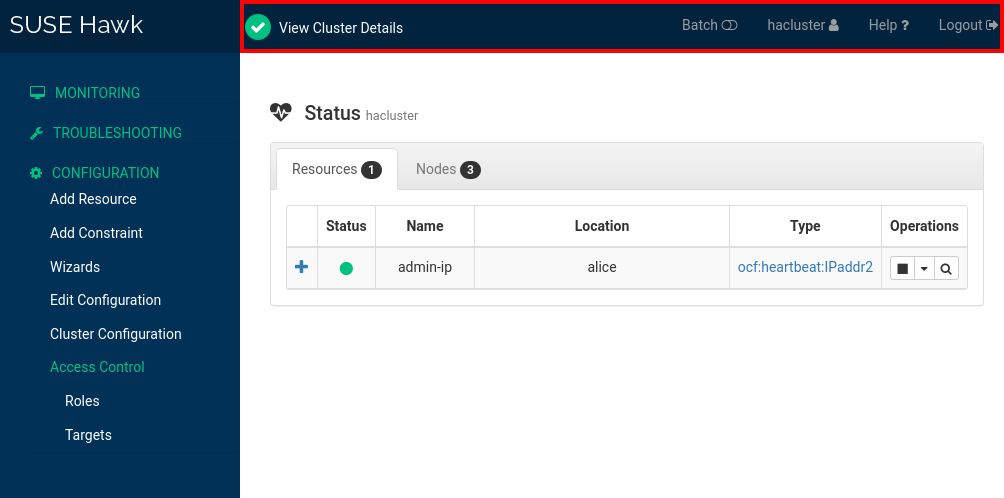
View details such as the cluster's status, which node is the Designated Coordinator, and the Pacemaker version, for example. Certain items are underlined, which means you can hover the cursor over them for more information.
Switch to batch mode. This allows you to simulate and stage changes and to apply them as a single transaction.
Set preferences for Hawk, such as the language for the Web interface, or whether to display a warning if fencing is disabled.
Access the SUSE Linux Enterprise High Availability documentation, read the release notes or report a bug.
Log out of Hawk.
1.3 Left navigation bar #
Hawk's left navigation bar shows the following options:
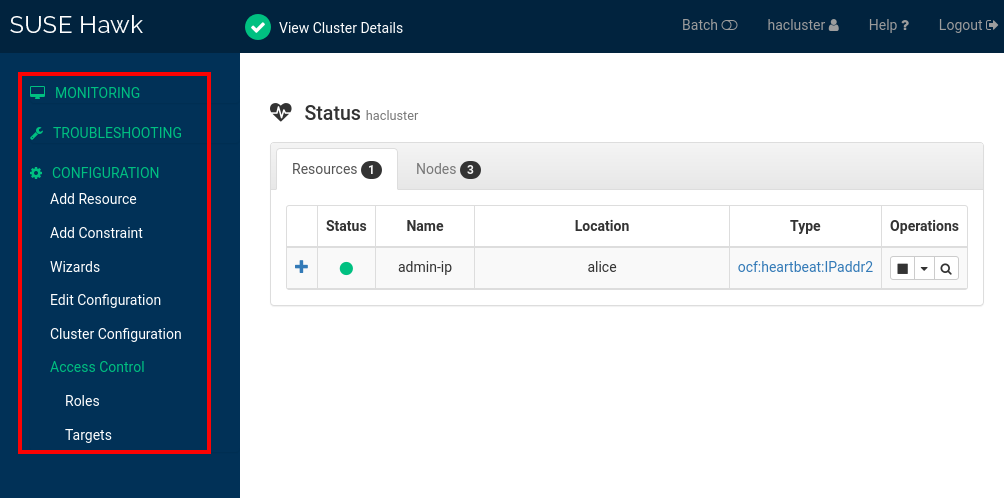
: Displays the current cluster status at a glance.
: Allows you to monitor multiple clusters.
: Opens the , from which you can generate cluster reports.
: Lists the
crmcommands recently run by Hawk.
: Opens the resource configuration screen.
: Opens the constraint configuration screen.
: Allows you to select from several wizards that guide you through the creation of resources for a certain workload, for example, a DRBD block device.
: Allows you to edit resources, constraints, node names and attributes, tags, alerts, and fencing topologies.
: Allows you to modify global cluster options and defaults.
› : Allows you to create roles (sets of rules describing access rights to the CIB) for access control lists (ACLs).
› : Allows you to create ACL targets (users) and assign roles to them.
2 Replacing Hawk's self-signed certificate #
By default, Hawk generates and presents a self-signed certificate. We recommend replacing the generated certificate with your own certificate, or a certificate that was signed by an official Certificate Authority.
Hawk supports wild card certificates. A wild card certificate is a public key certificate
that is valid for multiple sub-domains. For example, a wild card certificate for
*.example.com is valid for www.example.com,
login.example.com, etc.
Perform this procedure on every node that the Hawk service is running on:
Replace
/etc/hawk/hawk.keywith the new private key.Replace
/etc/hawk/hawk.pemwith the new certificate for Hawk to present.Change ownership of the files to
root:haclientand make the files accessible to the group:>sudo chown root:haclient /etc/hawk/hawk.key /etc/hawk/hawk.pem>sudo chmod 640 /etc/hawk/hawk.key /etc/hawk/hawk.pemRestart the Hawk services to reload the new certificate:
>sudo systemctl restart hawk-backend hawk
3 Logging in to Hawk #
Hawk allows you to manage a High Availability cluster using a graphical Web browser. You can also configure a floating, virtual IP address that allows clients to connect to Hawk no matter which node the Hawk service is running on.
By default, the hacluster user has read/write permissions for cluster
configuration tasks. You can also use access control lists (ACLs) to fine-tune access
permissions for other users. If ACLs are enabled, the available functions in Hawk depend on
the user's role and access permissions. However, the can
only be used by the user hacluster.
The client machine must be able to connect to the cluster nodes.
The client machine must have a graphical Web browser with JavaScript and cookies enabled.
This procedure uses the default hacluster user.
Open a Web browser and go to
https://HAWKSERVER:7630/, replacing HAWKSERVER with the IP address or host name of a cluster node, or the Hawk virtual IP address if one is configured. Note: Certificate warning
If a certificate warning appears when you access the URL for the first time, a self-signed certificate is in use. To verify the certificate, ask your cluster operator for the certificate details. To proceed anyway, you can add an exception in the browser to bypass the warning.
On the Hawk login screen, enter the and of the
haclusteruser.Click . Hawk shows the screen by default.
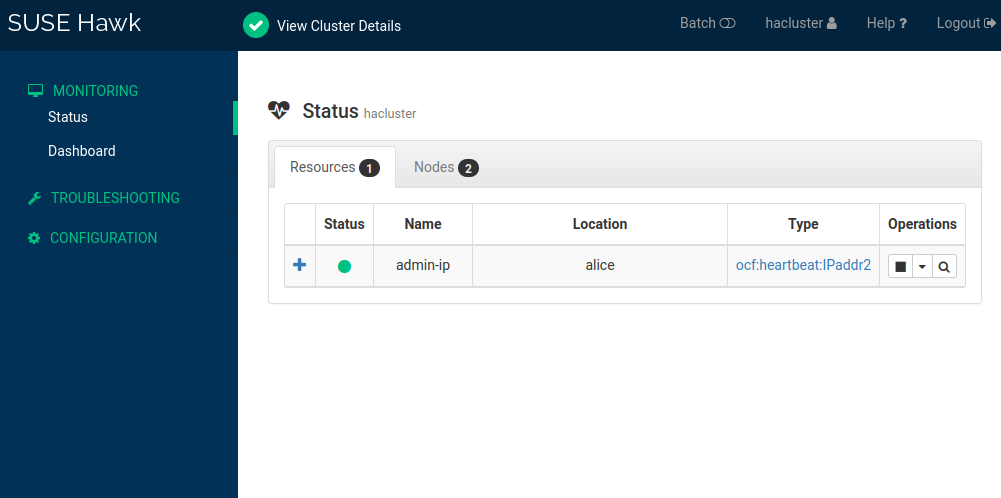
4 Hawk's screen #
After you log in to Hawk, the screen is displayed by default.
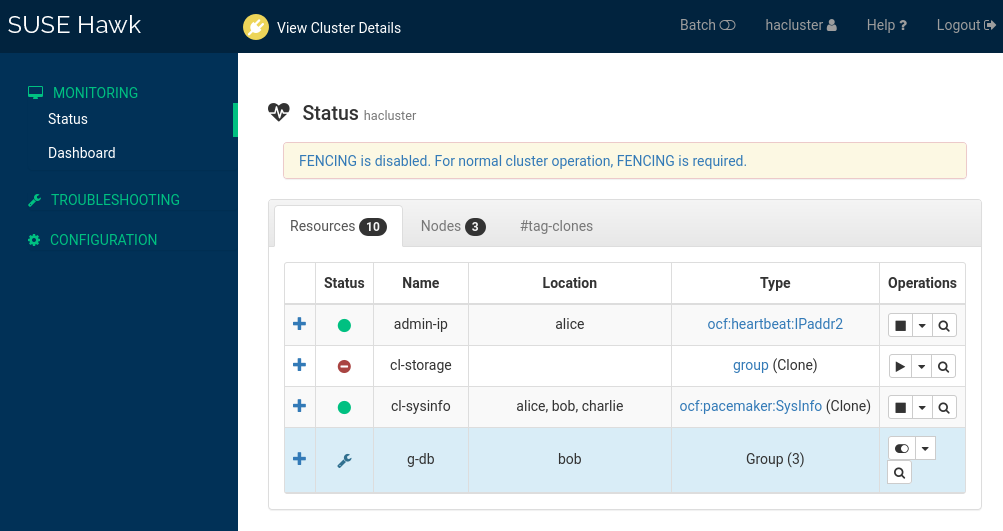
An icon in the upper-left corner shows the cluster status at a glance. Further details are shown in the following sections:
- Errors
Cluster configuration errors are shown at the top of the page. You can click an error to automatically generate a report in the .
The tab shows the following information about the cluster resources:
Plus icon: Click this icon to show the child resources in groups or clones.
: An icon showing the resource's status, such as started, stopped or maintenance mode.
: The resource's ID.
: Which node the resource is currently running on.
: The specific resource agent.
: A menu of actions that you can take on the resource, such as stopping, migrating, editing or switching to maintenance mode.
The tab shows the following information about the cluster nodes:
: An icon showing the node's status, such as online, offline, or Designated Coordinator.
: The node's ID.
: A toggle that switches maintenance mode on or off.
: A toggle that switches standby mode on or off.
: A menu of actions that you can take on the resource, such as viewing recent events, editing or fencing.
- Tags
If you create a resource tag, it appears as an additional tab next to the tab. The tab shows the resources included in the tag and has the same columns as the tab. Tag tabs also include an extra drop-down menu that allows you to start or stop all the child resources at once.
5 Hawk's screen #
You can use the screen to monitor multiple clusters. The clusters must all be running the same version of SUSE Linux Enterprise High Availability.
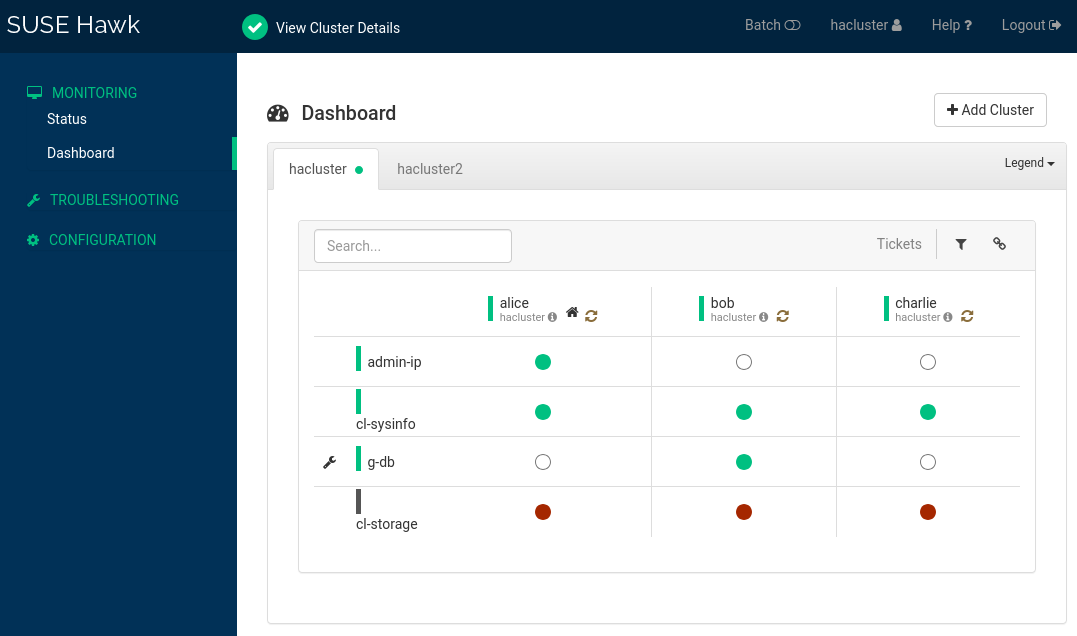
The screen has the following functions:
- Main dashboard
The main dashboard view shows the resources and nodes in the current cluster. For more information about the icons used in this view, click . To search for a resource, use the text box. To only show specific nodes, click the filter icon and select a filtering option.
- Add a cluster dashboard
To add a dashboard for another cluster, click and enter the cluster details. Hawk displays a second tab for the newly added cluster.
 Tip: Connection error
If you are prompted to connect to this cluster by entering a password, you might not have replaced the self-signed certificate yet. In that case, even after you enter the password, the connection fails with the following message:
Error connecting to server. Retrying every 5 seconds...To resolve this issue, replace the self-signed certificate. Alternatively, log in to Hawk on the new cluster's nodes and either verify the self-signed certificate or add an exception in the browser to bypass the warning.
- Switch to another cluster
To view more details for a cluster or to manage it, switch to the cluster's tab and click the chain icon. Hawk opens the view for this cluster in a new browser window or tab.
- Remove a cluster dashboard
To remove a cluster from the dashboard, click the
xicon on the right-hand side of the cluster's details. You can only remove additional clusters, not the main cluster.
6 Using batch mode #
Hawk's batch mode allows you to stage configuration changes and apply them all as a single transaction, instead of having each change take effect immediately. This can be useful when configuring resources that are dependent on one another and require constraints.
Batch mode also includes a cluster simulator, which shows the expected outcome of each change without affecting the live cluster. For example, if you stop a resource while in batch mode, the user interface shows the resource as stopped, but in the live cluster the resource is still running.
You can also inject cluster events, such as node changes and resource operations, to explore potential failure scenarios. These changes are only simulations, and won't be applied to the live cluster along with the configuration changes.

Certain wizards include actions beyond cluster configuration, such as installing packages. When using those wizards in batch mode, any changes that go beyond cluster configuration would be applied to the live system immediately.
Therefore, wizards that require root permission can't be used while in batch mode.
In a Web browser, go to
https://HAWKSERVER:7630/and log in.In the top-level row, click .
An additional bar appears below the top-level row to indicate that batch mode is active. This bar also includes the options to show, discard or apply your changes.
 Figure 6: Hawk batch mode bar #
While batch mode is active, perform any changes to your cluster, like adding or editing resources and constraints, or editing the cluster configuration. The changes will be simulated but are not applied to the live cluster yet.
To view details of your changes, select from the batch mode bar.
The window opens and shows the difference between the live cluster and the simulated changes in
crmshsyntax. Lines starting with a-character represent the current state, whereas lines starting with+show the proposed state.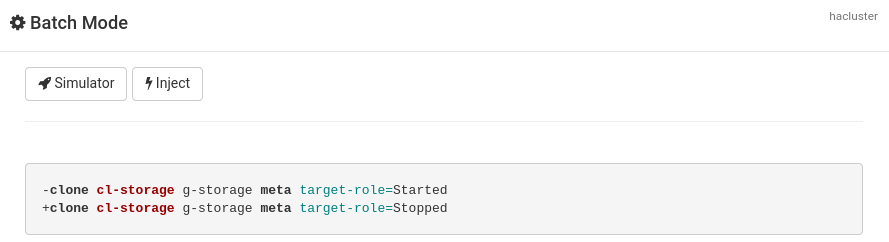 Figure 7: Hawk Batch Mode window #
(Optional) To test potential failures or to see how the cluster behaves in a specific scenario, you can simulate node changes and resource operations:
Simulate a node failure or status change:
Click › .
Select a and the node to simulate.
Click .
Simulate a resource operation:
Click › .
Select a and the to simulate.
If necessary, define an .
Select the on which to run the operation.
Select the operation to simulate.
Click .
The window shows a new line per injected event. Any event listed here is simulated immediately and is reflected on the screen.
To remove an injected event, click the icon next to it. Hawk updates the screen accordingly.
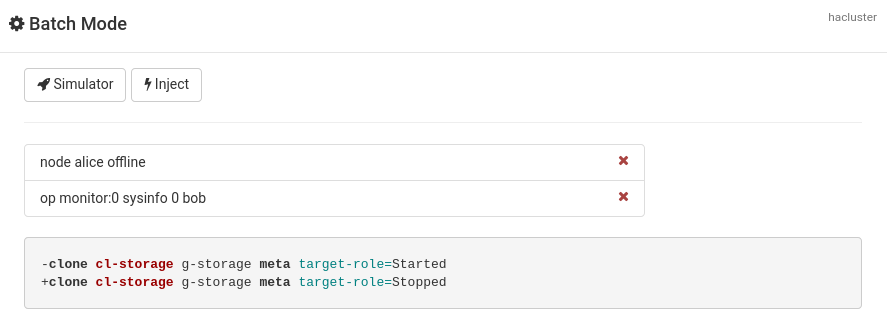 Figure 8: Hawk Batch Mode window with injected events #
(Optional) To view more details about the changes, click and choose one of the following:
: Shows a detailed summary.
: Shows the initial CIB state.
: Shows what the CIB would look like after the transition.
: Shows a graphical representation of the transition.
: Shows an XML representation of the transition.
After reviewing your changes, click to exit the window.
Choose whether to keep your changes or discard them:
To keep your changes, click in the batch mode bar. The window opens and shows a list of the changes. Only configuration changes are applied; injected events are not. Click to confirm.
To discard your changes, click in the batch mode bar, then click to confirm.
Both options deactivate batch mode and take you back to normal mode.
7 Using the configuration wizards #
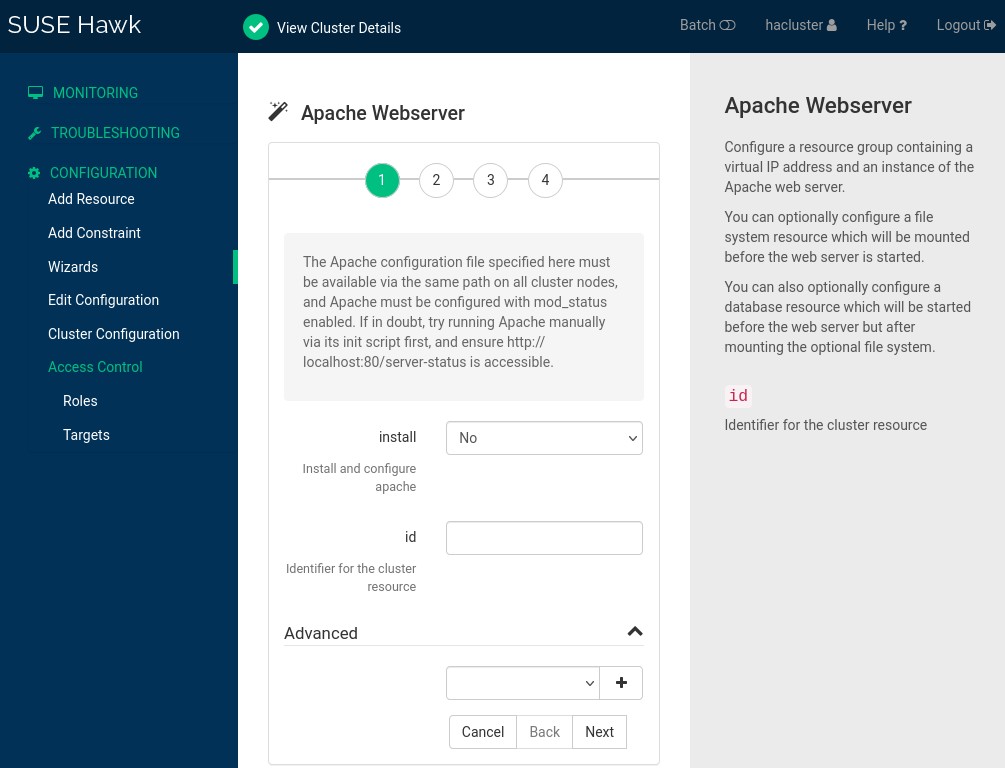
The Hawk help you configure resources, from simple resources like a virtual IP address to complex configurations like a DRBD block device or an Apache Web server. The wizard guides you through the configuration steps and provides information about the parameters you need to enter.
In a Web browser, go to
https://HAWKSERVER:7630/and log in.From the left navigation bar, select › .
Select the wizard you want to use. You can expand the different categories by clicking the down arrow icons.
Follow the instructions on the screen. Hawk shows a description for each parameter.
If the wizard has more than one step, click to go to the next step.
After the last step, click . Hawk shows a list of the actions it will perform and what the configuration will look like.
Click . Depending on the configuration, you might be prompted for the
rootpassword.The list of steps turns green if the configuration was applied successfully.
8 Legal Notice #
Copyright© 2006– 2026 SUSE LLC and contributors. All rights reserved.
Permission is granted to copy, distribute and/or modify this document under the terms of the GNU Free Documentation License, Version 1.2 or (at your option) version 1.3; with the Invariant Section being this copyright notice and license. A copy of the license version 1.2 is included in the section entitled “GNU Free Documentation License”.
For SUSE trademarks, see https://www.suse.com/company/legal/. All other third-party trademarks are the property of their respective owners. Trademark symbols (®, ™ etc.) denote trademarks of SUSE and its affiliates. Asterisks (*) denote third-party trademarks.
All information found in this book has been compiled with utmost attention to detail. However, this does not guarantee complete accuracy. Neither SUSE LLC, its affiliates, the authors, nor the translators shall be held liable for possible errors or the consequences thereof.
GNU Free Documentation License
Copyright (C) 2000, 2001, 2002 Free Software Foundation, Inc. 51 Franklin St, Fifth Floor, Boston, MA 02110-1301 USA. Everyone is permitted to copy and distribute verbatim copies of this license document, but changing it is not allowed.
0. PREAMBLE #
The purpose of this License is to make a manual, textbook, or other functional and useful document "free" in the sense of freedom: to assure everyone the effective freedom to copy and redistribute it, with or without modifying it, either commercially or non-commercially. Secondarily, this License preserves for the author and publisher a way to get credit for their work, while not being considered responsible for modifications made by others.
This License is a kind of "copyleft", which means that derivative works of the document must themselves be free in the same sense. It complements the GNU General Public License, which is a copyleft license designed for free software.
We have designed this License to use it for manuals for free software, because free software needs free documentation: a free program should come with manuals providing the same freedoms that the software does. But this License is not limited to software manuals; it can be used for any textual work, regardless of subject matter or whether it is published as a printed book. We recommend this License principally for works whose purpose is instruction or reference.
1. APPLICABILITY AND DEFINITIONS #
This License applies to any manual or other work, in any medium, that contains a notice placed by the copyright holder saying it can be distributed under the terms of this License. Such a notice grants a world-wide, royalty-free license, unlimited in duration, to use that work under the conditions stated herein. The "Document", below, refers to any such manual or work. Any member of the public is a licensee, and is addressed as "you". You accept the license if you copy, modify or distribute the work in a way requiring permission under copyright law.
A "Modified Version" of the Document means any work containing the Document or a portion of it, either copied verbatim, or with modifications and/or translated into another language.
A "Secondary Section" is a named appendix or a front-matter section of the Document that deals exclusively with the relationship of the publishers or authors of the Document to the Document's overall subject (or to related matters) and contains nothing that could fall directly within that overall subject. (Thus, if the Document is in part a textbook of mathematics, a Secondary Section may not explain any mathematics.) The relationship could be a matter of historical connection with the subject or with related matters, or of legal, commercial, philosophical, ethical or political position regarding them.
The "Invariant Sections" are certain Secondary Sections whose titles are designated, as being those of Invariant Sections, in the notice that says that the Document is released under this License. If a section does not fit the above definition of Secondary then it is not allowed to be designated as Invariant. The Document may contain zero Invariant Sections. If the Document does not identify any Invariant Sections then there are none.
The "Cover Texts" are certain short passages of text that are listed, as Front-Cover Texts or Back-Cover Texts, in the notice that says that the Document is released under this License. A Front-Cover Text may be at most 5 words, and a Back-Cover Text may be at most 25 words.
A "Transparent" copy of the Document means a machine-readable copy, represented in a format whose specification is available to the general public, that is suitable for revising the document straightforwardly with generic text editors or (for images composed of pixels) generic paint programs or (for drawings) some widely available drawing editor, and that is suitable for input to text formatters or for automatic translation to a variety of formats suitable for input to text formatters. A copy made in an otherwise Transparent file format whose markup, or absence of markup, has been arranged to thwart or discourage subsequent modification by readers is not Transparent. An image format is not Transparent if used for any substantial amount of text. A copy that is not "Transparent" is called "Opaque".
Examples of suitable formats for Transparent copies include plain ASCII without markup, Texinfo input format, LaTeX input format, SGML or XML using a publicly available DTD, and standard-conforming simple HTML, PostScript or PDF designed for human modification. Examples of transparent image formats include PNG, XCF and JPG. Opaque formats include proprietary formats that can be read and edited only by proprietary word processors, SGML or XML for which the DTD and/or processing tools are not generally available, and the machine-generated HTML, PostScript or PDF produced by some word processors for output purposes only.
The "Title Page" means, for a printed book, the title page itself, plus such following pages as are needed to hold, legibly, the material this License requires to appear in the title page. For works in formats which do not have any title page as such, "Title Page" means the text near the most prominent appearance of the work's title, preceding the beginning of the body of the text.
A section "Entitled XYZ" means a named subunit of the Document whose title either is precisely XYZ or contains XYZ in parentheses following text that translates XYZ in another language. (Here XYZ stands for a specific section name mentioned below, such as "Acknowledgements", "Dedications", "Endorsements", or "History".) To "Preserve the Title" of such a section when you modify the Document means that it remains a section "Entitled XYZ" according to this definition.
The Document may include Warranty Disclaimers next to the notice which states that this License applies to the Document. These Warranty Disclaimers are considered to be included by reference in this License, but only as regards disclaiming warranties: any other implication that these Warranty Disclaimers may have is void and has no effect on the meaning of this License.
2. VERBATIM COPYING #
You may copy and distribute the Document in any medium, either commercially or non-commercially, provided that this License, the copyright notices, and the license notice saying this License applies to the Document are reproduced in all copies, and that you add no other conditions whatsoever to those of this License. You may not use technical measures to obstruct or control the reading or further copying of the copies you make or distribute. However, you may accept compensation in exchange for copies. If you distribute a large enough number of copies you must also follow the conditions in section 3.
You may also lend copies, under the same conditions stated above, and you may publicly display copies.
3. COPYING IN QUANTITY #
If you publish printed copies (or copies in media that commonly have printed covers) of the Document, numbering more than 100, and the Document's license notice requires Cover Texts, you must enclose the copies in covers that carry, clearly and legibly, all these Cover Texts: Front-Cover Texts on the front cover, and Back-Cover Texts on the back cover. Both covers must also clearly and legibly identify you as the publisher of these copies. The front cover must present the full title with all words of the title equally prominent and visible. You may add other material on the covers in addition. Copying with changes limited to the covers, as long as they preserve the title of the Document and satisfy these conditions, can be treated as verbatim copying in other respects.
If the required texts for either cover are too voluminous to fit legibly, you should put the first ones listed (as many as fit reasonably) on the actual cover, and continue the rest onto adjacent pages.
If you publish or distribute Opaque copies of the Document numbering more than 100, you must either include a machine-readable Transparent copy along with each Opaque copy, or state in or with each Opaque copy a computer-network location from which the general network-using public has access to download using public-standard network protocols a complete Transparent copy of the Document, free of added material. If you use the latter option, you must take reasonably prudent steps, when you begin distribution of Opaque copies in quantity, to ensure that this Transparent copy will remain thus accessible at the stated location until at least one year after the last time you distribute an Opaque copy (directly or through your agents or retailers) of that edition to the public.
It is requested, but not required, that you contact the authors of the Document well before redistributing any large number of copies, to give them a chance to provide you with an updated version of the Document.
4. MODIFICATIONS #
You may copy and distribute a Modified Version of the Document under the conditions of sections 2 and 3 above, provided that you release the Modified Version under precisely this License, with the Modified Version filling the role of the Document, thus licensing distribution and modification of the Modified Version to whoever possesses a copy of it. In addition, you must do these things in the Modified Version:
Use in the Title Page (and on the covers, if any) a title distinct from that of the Document, and from those of previous versions (which should, if there were any, be listed in the History section of the Document). You may use the same title as a previous version if the original publisher of that version gives permission.
List on the Title Page, as authors, one or more persons or entities responsible for authorship of the modifications in the Modified Version, together with at least five of the principal authors of the Document (all of its principal authors, if it has fewer than five), unless they release you from this requirement.
State on the Title page the name of the publisher of the Modified Version, as the publisher.
Preserve all the copyright notices of the Document.
Add an appropriate copyright notice for your modifications adjacent to the other copyright notices.
Include, immediately after the copyright notices, a license notice giving the public permission to use the Modified Version under the terms of this License, in the form shown in the Addendum below.
Preserve in that license notice the full lists of Invariant Sections and required Cover Texts given in the Document's license notice.
Include an unaltered copy of this License.
Preserve the section Entitled "History", Preserve its Title, and add to it an item stating at least the title, year, new authors, and publisher of the Modified Version as given on the Title Page. If there is no section Entitled "History" in the Document, create one stating the title, year, authors, and publisher of the Document as given on its Title Page, then add an item describing the Modified Version as stated in the previous sentence.
Preserve the network location, if any, given in the Document for public access to a Transparent copy of the Document, and likewise the network locations given in the Document for previous versions it was based on. These may be placed in the "History" section. You may omit a network location for a work that was published at least four years before the Document itself, or if the original publisher of the version it refers to gives permission.
For any section Entitled "Acknowledgements" or "Dedications", Preserve the Title of the section, and preserve in the section all the substance and tone of each of the contributor acknowledgements and/or dedications given therein.
Preserve all the Invariant Sections of the Document, unaltered in their text and in their titles. Section numbers or the equivalent are not considered part of the section titles.
Delete any section Entitled "Endorsements". Such a section may not be included in the Modified Version.
Do not retitle any existing section to be Entitled "Endorsements" or to conflict in title with any Invariant Section.
Preserve any Warranty Disclaimers.
If the Modified Version includes new front-matter sections or appendices that qualify as Secondary Sections and contain no material copied from the Document, you may at your option designate some or all of these sections as invariant. To do this, add their titles to the list of Invariant Sections in the Modified Version's license notice. These titles must be distinct from any other section titles.
You may add a section Entitled "Endorsements", provided it contains nothing but endorsements of your Modified Version by various parties--for example, statements of peer review or that the text has been approved by an organization as the authoritative definition of a standard.
You may add a passage of up to five words as a Front-Cover Text, and a passage of up to 25 words as a Back-Cover Text, to the end of the list of Cover Texts in the Modified Version. Only one passage of Front-Cover Text and one of Back-Cover Text may be added by (or through arrangements made by) any one entity. If the Document already includes a cover text for the same cover, previously added by you or by arrangement made by the same entity you are acting on behalf of, you may not add another; but you may replace the old one, on explicit permission from the previous publisher that added the old one.
The author(s) and publisher(s) of the Document do not by this License give permission to use their names for publicity for or to assert or imply endorsement of any Modified Version.
5. COMBINING DOCUMENTS #
You may combine the Document with other documents released under this License, under the terms defined in section 4 above for modified versions, provided that you include in the combination all of the Invariant Sections of all of the original documents, unmodified, and list them all as Invariant Sections of your combined work in its license notice, and that you preserve all their Warranty Disclaimers.
The combined work need only contain one copy of this License, and multiple identical Invariant Sections may be replaced with a single copy. If there are multiple Invariant Sections with the same name but different contents, make the title of each such section unique by adding at the end of it, in parentheses, the name of the original author or publisher of that section if known, or else a unique number. Make the same adjustment to the section titles in the list of Invariant Sections in the license notice of the combined work.
In the combination, you must combine any sections Entitled "History" in the various original documents, forming one section Entitled "History"; likewise combine any sections Entitled "Acknowledgements", and any sections Entitled "Dedications". You must delete all sections Entitled "Endorsements".
6. COLLECTIONS OF DOCUMENTS #
You may make a collection consisting of the Document and other documents released under this License, and replace the individual copies of this License in the various documents with a single copy that is included in the collection, provided that you follow the rules of this License for verbatim copying of each of the documents in all other respects.
You may extract a single document from such a collection, and distribute it individually under this License, provided you insert a copy of this License into the extracted document, and follow this License in all other respects regarding verbatim copying of that document.
7. AGGREGATION WITH INDEPENDENT WORKS #
A compilation of the Document or its derivatives with other separate and independent documents or works, in or on a volume of a storage or distribution medium, is called an "aggregate" if the copyright resulting from the compilation is not used to limit the legal rights of the compilation's users beyond what the individual works permit. When the Document is included in an aggregate, this License does not apply to the other works in the aggregate which are not themselves derivative works of the Document.
If the Cover Text requirement of section 3 is applicable to these copies of the Document, then if the Document is less than one half of the entire aggregate, the Document's Cover Texts may be placed on covers that bracket the Document within the aggregate, or the electronic equivalent of covers if the Document is in electronic form. Otherwise they must appear on printed covers that bracket the whole aggregate.
8. TRANSLATION #
Translation is considered a kind of modification, so you may distribute translations of the Document under the terms of section 4. Replacing Invariant Sections with translations requires special permission from their copyright holders, but you may include translations of some or all Invariant Sections in addition to the original versions of these Invariant Sections. You may include a translation of this License, and all the license notices in the Document, and any Warranty Disclaimers, provided that you also include the original English version of this License and the original versions of those notices and disclaimers. In case of a disagreement between the translation and the original version of this License or a notice or disclaimer, the original version will prevail.
If a section in the Document is Entitled "Acknowledgements", "Dedications", or "History", the requirement (section 4) to Preserve its Title (section 1) will typically require changing the actual title.
9. TERMINATION #
You may not copy, modify, sublicense, or distribute the Document except as expressly provided for under this License. Any other attempt to copy, modify, sublicense or distribute the Document is void, and will automatically terminate your rights under this License. However, parties who have received copies, or rights, from you under this License will not have their licenses terminated so long as such parties remain in full compliance.
10. FUTURE REVISIONS OF THIS LICENSE #
The Free Software Foundation may publish new, revised versions of the GNU Free Documentation License from time to time. Such new versions will be similar in spirit to the present version, but may differ in detail to address new problems or concerns. See https://www.gnu.org/copyleft/.
Each version of the License is given a distinguishing version number. If the Document specifies that a particular numbered version of this License "or any later version" applies to it, you have the option of following the terms and conditions either of that specified version or of any later version that has been published (not as a draft) by the Free Software Foundation. If the Document does not specify a version number of this License, you may choose any version ever published (not as a draft) by the Free Software Foundation.
ADDENDUM: How to use this License for your documents #
Copyright (c) YEAR YOUR NAME.
Permission is granted to copy, distribute and/or modify this document
under the terms of the GNU Free Documentation License, Version 1.2
or any later version published by the Free Software Foundation;
with no Invariant Sections, no Front-Cover Texts, and no Back-Cover Texts.
A copy of the license is included in the section entitled “GNU
Free Documentation License”.
If you have Invariant Sections, Front-Cover Texts and Back-Cover Texts, replace the “with...Texts.” line with this:
with the Invariant Sections being LIST THEIR TITLES, with the
Front-Cover Texts being LIST, and with the Back-Cover Texts being LIST.
If you have Invariant Sections without Cover Texts, or some other combination of the three, merge those two alternatives to suit the situation.
If your document contains nontrivial examples of program code, we recommend releasing these examples in parallel under your choice of free software license, such as the GNU General Public License, to permit their use in free software.
HA glossary #
- ACL (access control list) #
Access control lists can be used to limit or fine-tune a user's access to the CIB. An ACL consists of an ordered set of access rules. Each rule allows or denies read or write access to a part of the CIB. Rules can be combined into specific roles, and users can be assigned to a role that matches their tasks.
- active/active, active/passive #
How resources run on the nodes. Active/passive means that resources only run on the active node, but can move to the passive node if the active node fails. Active/active means that all nodes are active at once, and resources can run on (and move to) any node in the cluster.
- arbitrator #
An arbitrator is a machine running outside the cluster to provide an additional instance for cluster calculations. For example, QNetd provides a vote to help QDevice participate in quorum decisions.
- CIB (cluster information base) #
An XML representation of the whole cluster configuration and status (cluster options, nodes, resources, constraints, etc.). The CIB manager (
pacemaker-based) keeps the CIB synchronized across the cluster nodes and handles requests to modify it.- clone #
In the context of a cluster resource, a clone is a resource that can be active on multiple nodes. Any resource can be cloned if its resource agent supports it.
- cluster #
A high-availability cluster is a group of servers (physical or virtual) designed primarily to secure the highest possible availability of data, applications and services. Not to be confused with a high-performance cluster, which shares the application load to achieve faster results.
- Cluster LVM (Cluster logical volume manager) #
The term Cluster LVM indicates that LVM is being used in a cluster environment. This requires configuration adjustments to protect the LVM metadata on shared storage.
- cluster offline upgrade #
If a new product version includes major changes that are backward incompatible, the cluster requires a cluster offline upgrade. You must stop the cluster services on all nodes and upgrade the whole cluster before bringing the nodes back online.
For minor version upgrades, see cluster rolling upgrade.
- cluster partition #
A cluster partition occurs when communication fails between one or more nodes and the rest of the cluster. The nodes are split into partitions but are still active. They can only communicate with nodes in the same partition and are unaware of the separated nodes. This is known as a split brain scenario.
- cluster rolling upgrade #
In a cluster rolling upgrade, one cluster node at a time is upgraded while the rest of the cluster is still running. Stop the cluster services on a node, upgrade it, then bring it back online to join the cluster. Continue one by one until all cluster nodes are upgraded.
For major version upgrades, see cluster offline upgrade.
- cluster services #
The services that run the cluster. Typically this refers to Pacemaker and Corosync, but might also include SBD and QDevice if those services are used.
- cluster stack #
The ensemble of software technologies and components that make up a cluster.
- colocation constraint #
A type of resource constraint that specifies which resources can or cannot run together on a node.
- concurrency violation #
A resource that should be running on only one node in the cluster is running on several nodes.
- Corosync #
Corosync provides reliable messaging, membership and quorum information about the cluster. This is handled by the Corosync Cluster Engine, a group communication system.
- CRM (cluster resource manager) #
The management entity responsible for coordinating all non-local interactions in a High Availability cluster. SUSE Linux Enterprise High Availability uses Pacemaker as the CRM. It interacts with several components: local executors on its own node and on the other nodes, non-local CRMs, administrative commands, the fencing functionality, and the membership layer.
crmsh(CRM Shell) #The command-line utility
crmshmanages the cluster, nodes and resources.- Csync2 #
A synchronization tool for replicating configuration files across all nodes in the cluster.
- DC (designated coordinator) #
The
pacemaker-controlddaemon is the cluster controller, which coordinates all actions. This daemon has an instance on each cluster node, but only one instance is elected to act as the DC. The DC is elected when the cluster services start, or if the current DC fails or leaves the cluster. The DC decides whether a cluster-wide change must be performed, such as fencing a node or moving resources.- disaster #
An unexpected interruption of critical infrastructure caused by nature, humans, hardware failure, or software bugs.
- disaster recovery #
The process by which a function is restored to the normal, steady state after a disaster.
- Disaster Recovery Plan #
A strategy to recover from a disaster with the minimum impact on IT infrastructure.
- DLM (Distributed Lock Manager) #
DLM coordinates accesses to shared resources in a cluster, for example, managing file locking in clustered file systems to increase performance and availability.
- DRBD #
DRBD® is a block device designed for building High Availability clusters. It replicates data on a primary device to secondary devices in a way that ensures all copies of the data remain identical.
- existing cluster #
The term existing cluster is used to refer to any cluster that consists of at least one node. An existing cluster has a basic Corosync configuration that defines the communication channels, but does not necessarily have resource configuration yet.
- failover #
Occurs when a resource or node fails on one machine and the affected resources move to another node.
- failover domain #
A named subset of cluster nodes that are eligible to run a resource if a node fails.
- fencing #
Prevents access to a shared resource by isolated or failing cluster members. There are two classes of fencing: resource-level fencing and node-level fencing. Resource-level fencing ensures exclusive access to a resource. Node-level fencing prevents a failed node from accessing shared resources and prevents resources from running on a node with an uncertain status. This is usually done by resetting or powering off the node.
- GFS2 #
Global File System 2 (GFS2) is a shared disk file system for Linux computer clusters. GFS2 allows all nodes to have direct concurrent access to the same shared block storage. GFS2 has no disconnected operating mode, and no client or server roles. All nodes in a GFS2 cluster function as peers. GFS2 supports up to 32 cluster nodes. Using GFS2 in a cluster requires hardware to allow access to the shared storage, and a lock manager to control access to the storage.
- group #
Resource groups contain multiple resources that need to be located together, started sequentially and stopped in the reverse order.
- Hawk (HA Web Konsole) #
A user-friendly Web-based interface for monitoring and administering a High Availability cluster from Linux or non-Linux machines. Hawk can be accessed from any machine that can connect to the cluster nodes, using a graphical Web browser.
- heuristics #
QDevice supports using a set of commands (heuristics) that run locally on start-up of cluster services, cluster membership change, successful connection to the QNetd server, or optionally at regular times. The result is used in calculations to determine which partition should have quorum.
- knet (kronosnet) #
A network abstraction layer supporting redundancy, security, fault tolerance, and fast fail-over of network links. In SUSE Linux Enterprise High Availability 16, knet is the default transport protocol for the Corosync communication channels.
- local cluster #
A single cluster in one location (for example, all nodes are located in one data center). Network latency is minimal. Storage is typically accessed synchronously by all nodes.
- local executor #
The local executor is located between Pacemaker and the resources on each node. Through the
pacemaker-execddaemon, Pacemaker can start, stop and monitor resources.- location #
In the context of a whole cluster, location can refer to the physical location of nodes (for example, all nodes might be located in the same data center). In the context of a location constraint, location refers to the nodes on which a resource can or cannot run.
- location constraint #
A type of resource constraint that defines the nodes on which a resource can or cannot run.
- meta attribute #
Parameters that tell the CRM (cluster resource manager) how to treat a specific resource. For example, you might define a resource's priority or target role.
- metro cluster #
A single cluster that can stretch over multiple buildings or data centers, with all sites connected by Fibre Channel. Network latency is usually low. Storage is frequently replicated using mirroring or synchronous replication.
- network device bonding #
Network device bonding combines two or more network interfaces into a single bonded device to increase bandwidth and/or provide redundancy. When using Corosync, the bonded device is not managed by the cluster software. Therefore, the bonded device must be configured on every cluster node that might need to access it.
- node #
Any server (physical or virtual) that is a member of a cluster.
- order constraint #
A type of resource constraint that defines the sequence of actions.
- Pacemaker #
Pacemaker is the CRM (cluster resource manager) in SUSE Linux Enterprise High Availability, or the “brain” that reacts to events occurring in the cluster. Events might be nodes that join or leave the cluster, failure of resources, or scheduled activities such as maintenance, for example. The
pacemakerddaemon launches and monitors all other related daemons.- parameters (instance attributes) #
Parameters determine which instance of a service the resource controls.
- primitive #
A primitive resource is the most basic type of cluster resource.
- promotable clone #
Promotable clones are a special type of clone resource that can be promoted. Active instances of these resources are divided into two states: promoted and unpromoted (also known as “active and passive” or “primary and secondary”).
- QDevice #
QDevice and QNetd participate in quorum decisions. The
corosync-qdevicedaemon runs on each cluster node and communicates with QNetd to provide a configurable number of votes, allowing a cluster to sustain more node failures than the standard quorum rules allow.- QNetd #
QNetd is an arbitrator that runs outside the cluster. The
corosync-qnetddaemon provides a vote to thecorosync-qdevicedaemon on each node to help it participate in quorum decisions.- quorum #
A cluster partition is defined to have quorum (be quorate) if it has the majority of nodes (or “votes”). Quorum distinguishes exactly one partition. This is part of the algorithm to prevent several disconnected partitions or nodes (“split brain”) from proceeding and causing data and service corruption. Quorum is a prerequisite for fencing, which then ensures that quorum is unique.
- RA (resource agent) #
A script acting as a proxy to manage a resource (for example, to start, stop or monitor a resource). SUSE Linux Enterprise High Availability supports different kinds of resource agents.
- ReaR (Relax and Recover) #
An administrator tool set for creating disaster recovery images.
- resource #
Any type of service or application that is known to Pacemaker, for example, an IP address, a file system, or a database. The term resource is also used for DRBD, where it names a set of block devices that use a common connection for replication.
- resource constraint #
Resource constraints specify which cluster nodes a resource can run on, what order the resources should start in, and which other resources a specific resource is dependent on.
See also colocation constraint, location constraint and order constraint.
- resource set #
As an alternative format for defining location, colocation or order constraints, you can use resource sets, where primitives are grouped together in one set. When creating a constraint, you can specify multiple resources for the constraint to apply to.
- resource template #
To help create many resources with similar configurations, you can define a resource template. After being defined, it can be referenced in primitives or in certain types of constraints. If a template is referenced in a primitive, the primitive inherits all operations, instance attributes (parameters), meta attributes and utilization attributes defined in the template.
- SBD (STONITH Block Device) #
SBD provides a node fencing mechanism through the exchange of messages via shared block storage. Alternatively, it can be used in diskless mode. In either case, it needs a hardware or software watchdog on each node to ensure that misbehaving nodes are really stopped.
- scheduler #
The scheduler is implemented as
pacemaker-schedulerd. When a cluster transition is needed,pacemaker-schedulerdcalculates the expected next state of the cluster and determines what actions need to be scheduled to achieve the next state.- split brain #
A scenario in which the cluster nodes are divided into two or more groups that do not know about each other (either through a software or hardware failure). STONITH prevents a split-brain scenario from badly affecting the entire cluster. Also known as a partitioned cluster scenario.
The term split brain is also used in DRBD but means that the nodes contain different data.
- SPOF (single point of failure) #
Any component of a cluster that, if it fails, triggers the failure of the entire cluster.
- stickiness #
Resource stickiness is a meta attribute that determines how much a resource prefers to stay on its current node.
- STONITH #
Another term for the fencing mechanism that shuts down a misbehaving node to prevent it from causing trouble in a cluster. In a Pacemaker cluster, node fencing is managed by the fencing subsystem
pacemaker-fenced.- switchover #
The planned moving of resources to other nodes in a cluster. See also failover.
- utilization #
Tells the CRM what capacity a certain resource requires from a node.
- watchdog #
SBD (STONITH Block Device) needs a watchdog on each node to ensure that misbehaving nodes are really stopped. SBD “feeds” the watchdog by regularly writing a service pulse to it. If SBD stops feeding the watchdog, the hardware enforces a system restart. This protects against failures of the SBD process itself, such as becoming stuck on an I/O error.